February 19, 2026


Running Facebook ads for your Shopify store opens up access to sophisticated targeting, dynamic product advertising, and retargeting capabilities that can significantly boost your ecommerce sales. The native integration between Shopify and Meta makes setup straightforward, but getting results requires understanding the right configuration and campaign strategies.
This guide walks you through connecting your Shopify store to Facebook, setting up catalog ads, implementing dynamic retargeting, and ensuring accurate conversion tracking.
Before running any ads, you need to connect your Shopify store to Meta's advertising ecosystem. This integration syncs your products, enables tracking, and unlocks advanced ad formats.
Start by creating a Facebook Business Manager account if you don't have one. This is where you'll manage your ad account, pixel, and product catalog. Add your Facebook business page and create a dedicated ad account for your store.
In your Shopify admin, go to Sales Channels and add the Facebook & Instagram app. This is Meta's official integration that connects your store to the advertising platform.
During setup, you'll:
Important: Complete all setup steps in Business Manager first (pages, ad accounts, permissions). If these aren't configured before you start the Shopify integration, the dropdown menus won't show your assets.
Once connected, Shopify automatically syncs your product catalog to Meta. This enables dynamic product ads and allows you to run catalog-based campaigns. In Shopify, go to Facebook > Overview > View Products to verify your products are syncing correctly.
Optimize product images for best results—square format (1:1 ratio) works best across placements.
Catalog ads (also called Dynamic Product Ads or DPAs) automatically show relevant products to users based on their browsing behavior or interests. They're one of the most effective formats for ecommerce advertisers.
When a customer views red sneakers on your store but doesn't buy, catalog ads can show them exactly those sneakers in their Facebook or Instagram feed the next day. This happens automatically through the product feed connection.
For most Shopify stores, start with Advantage+ Catalog Ads. They leverage Meta's machine learning to match products with the most likely buyers. Understanding how to run Facebook ads effectively with these advanced formats can dramatically improve your campaign performance.
Dynamic retargeting is one of the highest-ROI tactics available to Shopify store owners. It targets users who already showed interest in your products.
Create these custom audiences in Meta Ads Manager:
Audience | Description | Typical Use |
Product Viewers | Visited product pages but didn't add to cart | Show viewed products with social proof |
Cart Abandoners | Added items but didn't purchase | Show cart items with urgency messaging |
Past Purchasers | Bought from you before | Cross-sell related products |
Engaged Shoppers | High intent but no purchase | Offer discount or free shipping |
Segment by intent level. A product viewer needs different messaging than a cart abandoner. Don't show the same ad to all retargeting audiences—tailor creative to their stage in the buying journey.
Exclude converted users. Always set up exclusion audiences to prevent showing ads to people who already purchased. This protects your budget and improves customer experience.
Use recency windows. A 7-day retargeting window typically outperforms 30-day or 180-day windows. Recent visitors are more likely to convert.
Frequency cap consideration. Watch your ad frequency. If the same person sees your retargeting ad 10+ times without converting, they're not interested—you're just annoying them and wasting budget. When evaluating whether your campaigns are performing well, compare your results against benchmarks for what is good ROI for Facebook ads.
Accurate tracking is essential for optimizing Facebook ads. Without proper setup, Meta's algorithm can't learn who your best customers are.
The Meta Pixel tracks customer behavior on your website—page views, add to carts, purchases, and more. When you connect Shopify via the Facebook & Instagram app, it automatically creates and installs your pixel.
Verify installation by:
The Conversions API sends data directly from Shopify's servers to Meta, bypassing browser restrictions. This is critical for accurate tracking in 2026, as browser privacy settings increasingly block pixel-based tracking.
Enable Conversions API in your Shopify Facebook app settings. Shopify handles the server-side integration automatically when you use their native app.
Pro tip: Focus on maximizing your Event Match Quality score by capturing customer email addresses and phone numbers at checkout. This data helps Meta match conversions more accurately.
Before spending significant budget, validate your tracking setup:
In Ads Manager, configure your attribution window based on your sales cycle. For most Shopify stores:
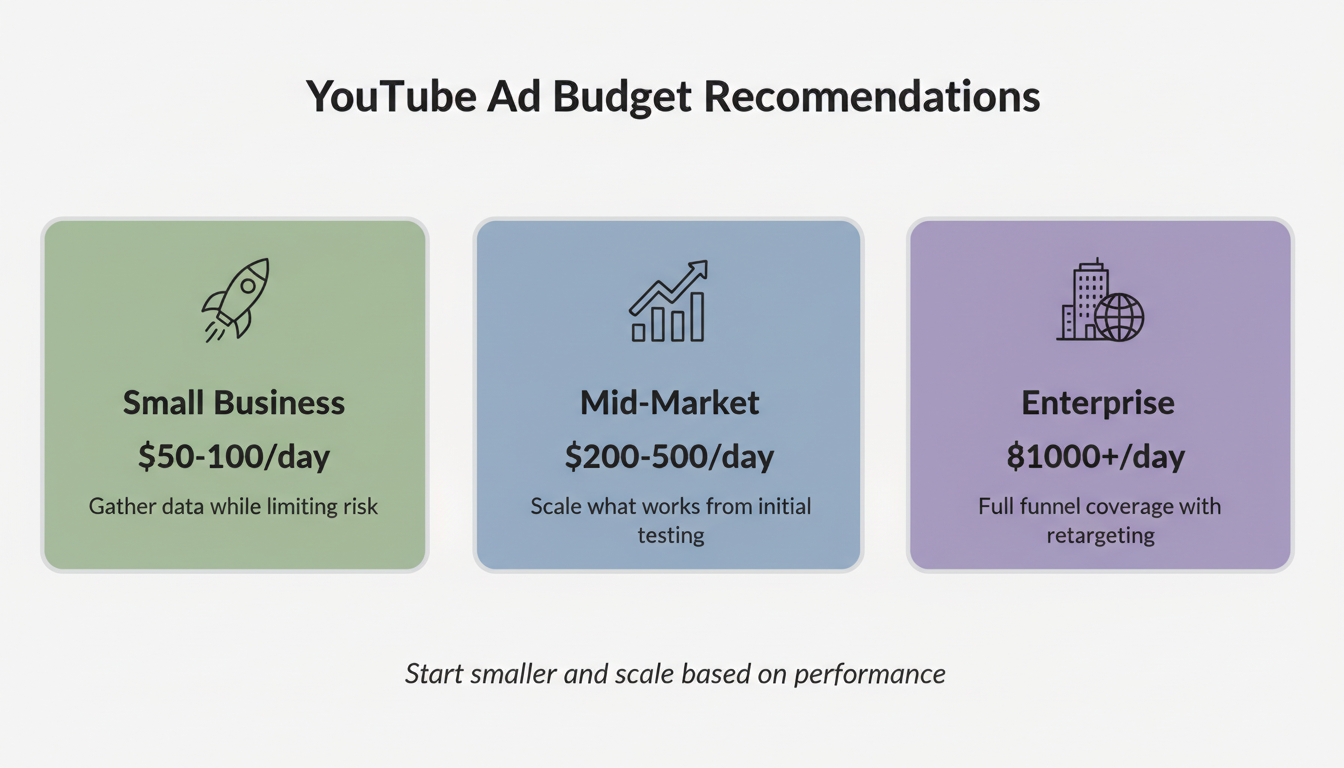
Start with $20-50 per day during testing to gather data. Once you find winning ads and audiences, scale gradually (10-20% budget increases every 2-3 days). Most successful Shopify stores eventually spend $3,000-$10,000+ monthly on profitable campaigns. Understanding the average cost of Facebook ads helps you set realistic budgets for your campaigns.
No. You can run ecommerce ads without a Facebook Shop. The product catalog for ads is separate from having a storefront on Facebook. However, a Facebook Shop can serve as a trust signal and additional sales channel.
Common issues include: poor tracking setup (check your pixel and CAPI), targeting too narrow, weak product pages, uncompetitive pricing, or insufficient creative testing. Start by verifying your Events Manager shows accurate data, then audit your landing pages and ad creative. Learning how to run Meta ads properly can help you avoid these common pitfalls.
By submitting this form, you agree to our Privacy Policy and Terms & Conditions.