February 19, 2026


Conversion tracking transforms LinkedIn advertising from guesswork into measurable ROI. Without it, you can't attribute leads to specific campaigns, build retargeting audiences, or optimize for actual business outcomes.
This guide walks through setting up LinkedIn conversion tracking using both the Insight Tag and Conversions API (CAPI).
LinkedIn conversion tracking enables three critical capabilities:
1. Attribution: Know which campaigns, ads, and audiences drive actual conversions—not just clicks.
2. Optimization: Feed LinkedIn's algorithm quality signals so it can find more users likely to convert.
3. Retargeting: Build audiences based on website behavior (pricing page visitors, cart abandoners, content downloaders).
According to LinkedIn Campaign Manager guidance, the Insight Tag "tracks visitors and conversions, which lets you retarget people who visited your site and measure which campaigns are driving real results."
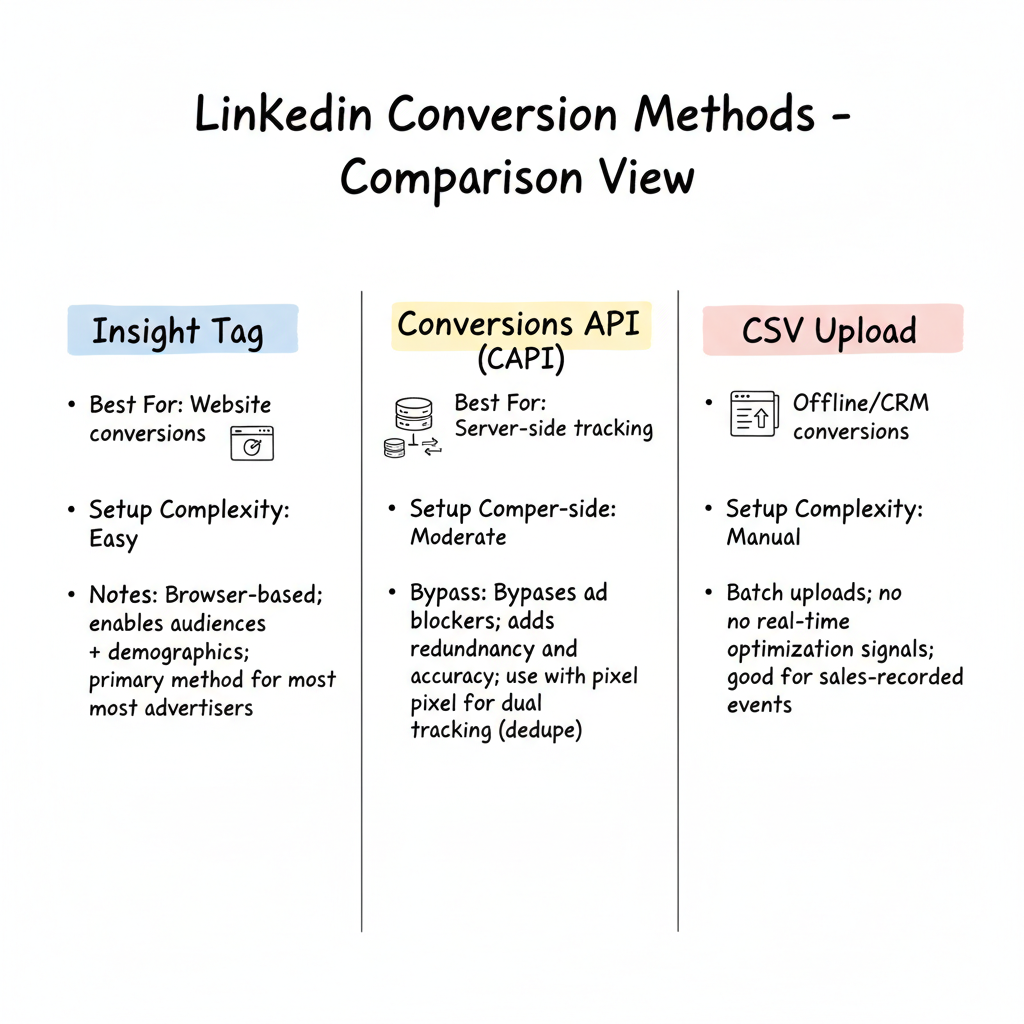
LinkedIn offers three methods for tracking conversions:
Method | Best For | Setup Complexity |
Insight Tag | Website conversions | Easy |
Conversions API (CAPI) | Server-side tracking | Moderate |
CSV Upload | Offline/CRM conversions | Manual |
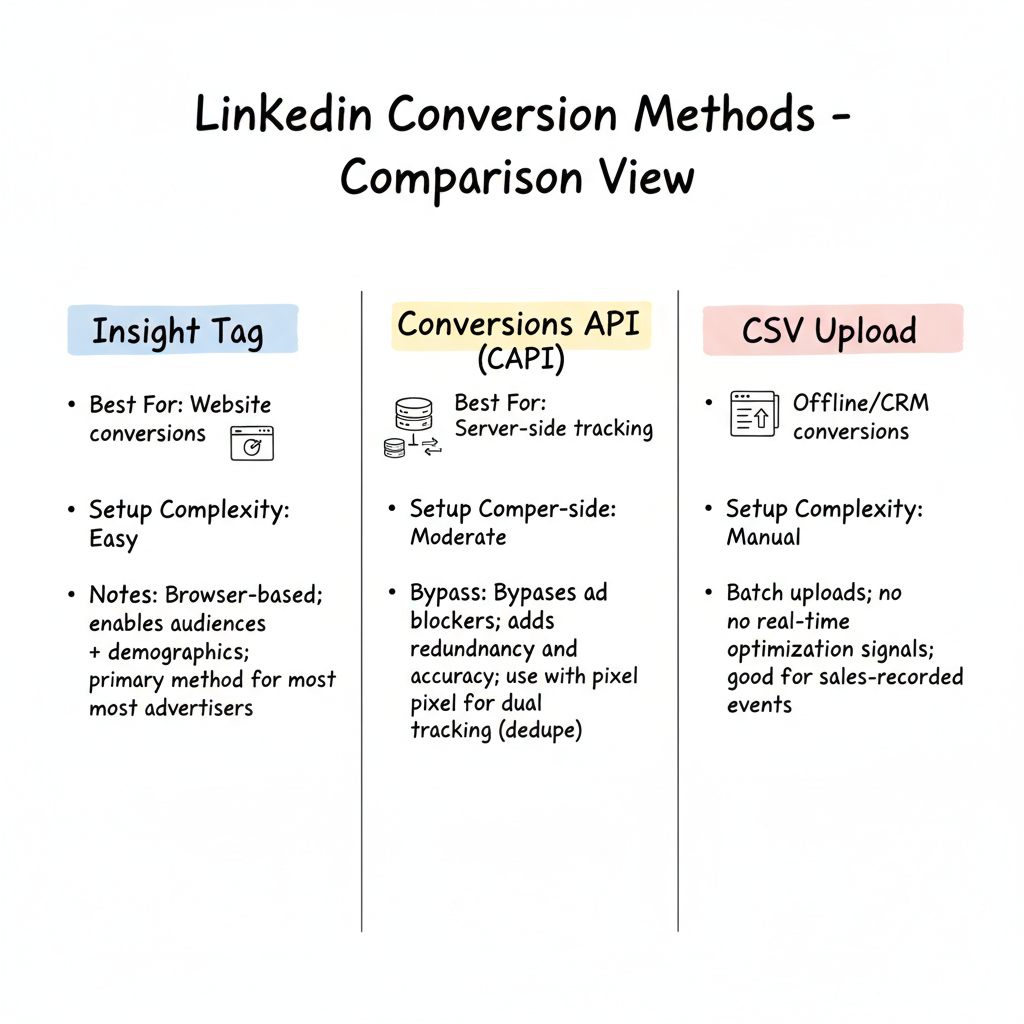
For most advertisers, the Insight Tag provides sufficient tracking. CAPI becomes important for privacy-conscious setups or when you need to capture conversions the browser-based tag might miss.
The Insight Tag is lightweight JavaScript code that goes in the header section of your website, before the closing </head> tag.
Direct Installation: Copy the full code snippet and paste it into your website header. This needs to appear on every page you want to track.
Google Tag Manager Installation:
WordPress/CMS Installation: Most CMS platforms have header/footer injection options or dedicated LinkedIn tracking plugins.
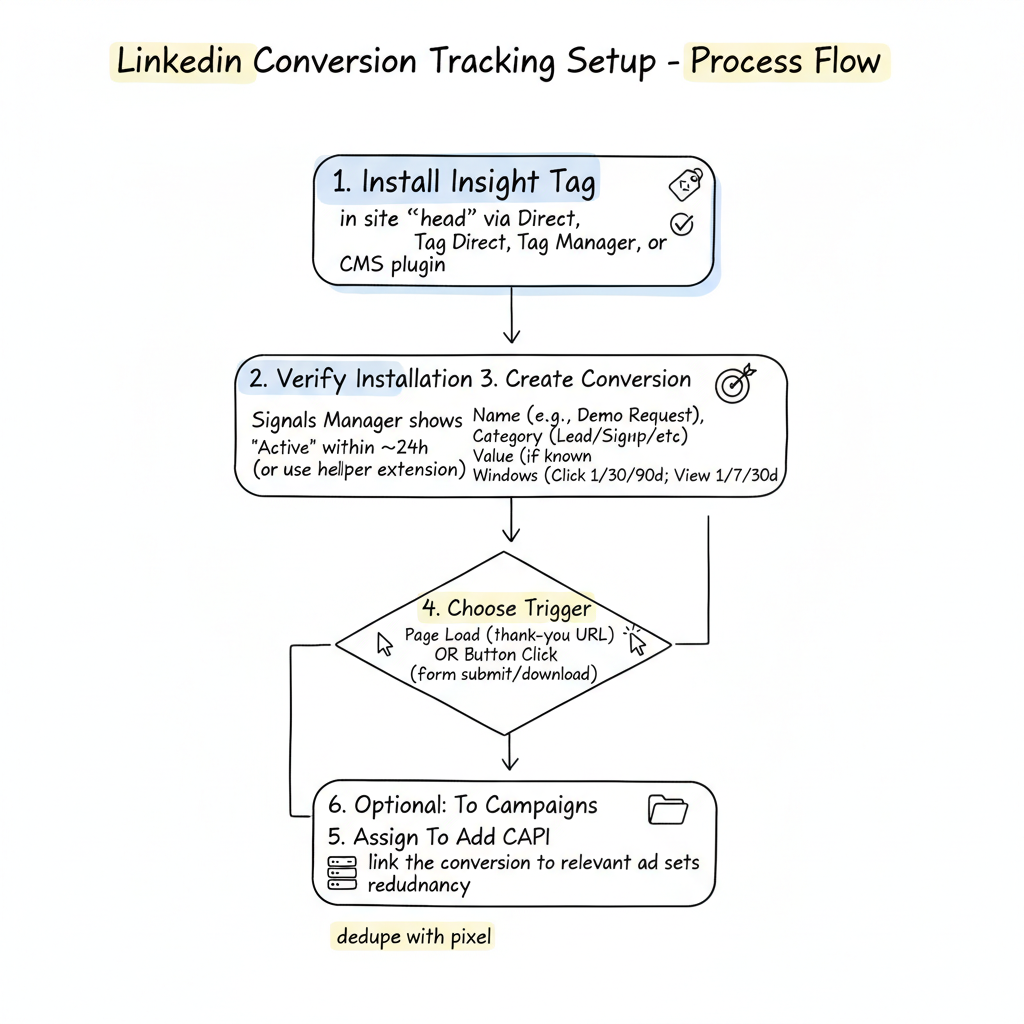
After installation, return to Signals Manager in Campaign Manager. The tag status should show as "Active" within 24 hours. You can also use browser developer tools or the LinkedIn Insight Tag Helper Chrome extension to verify firing.
Once your Insight Tag is active, create conversion rules to define what actions you want to track.
According to LinkedIn's conversion setup guide:
Name: Use descriptive names like "Demo Request - Pricing Page" or "Whitepaper Download - ABM Guide"
Category: Choose from options like Lead, Purchase, Sign-up, Key Page View, or Custom
Value: Assign a monetary value if known (helps with ROAS calculations)
Attribution Window:
According to conversion tracking best practices, use Last Touch Attribution and avoid mixing page load + button click triggers in the same conversion rule.
Page Load: Fires when a user visits a specific URL (thank-you pages, confirmation pages)
Button Click: Fires when a user clicks a specific element (form submissions, download buttons)
Event-Specific: Tracks JavaScript events you define
For most lead generation, page load tracking on thank-you pages provides the cleanest data. This approach is similar to how LinkedIn lead gen forms capture conversions directly within the platform.
Filter conversions to specific pages for accuracy:
Example: Track only demo requests from your pricing page by filtering for URLs containing "/thank-you" AND "/pricing" in the referrer.
For advertisers needing server-side tracking, LinkedIn's Conversions API sends conversion data directly from your server—bypassing browser limitations.
Privacy-focused tracking analysis recommends server-side tracking to "maintain measurement accuracy in a privacy-first world" by "capturing conversion data directly from your server, bypassing browser restrictions and ad blockers."
CAPI is particularly valuable when:
LinkedIn offers multiple CAPI integration paths:
Partner Integrations: Zapier, Segment, and other marketing automation platforms offer pre-built LinkedIn CAPI connectors.
Direct API: For custom implementations, LinkedIn provides API documentation for direct server-to-server communication.
CRM Integrations: HubSpot, Salesforce, and other CRMs can sync conversion data to LinkedIn through Business Manager connections.
If you're working with linkedin-marketing-partners, many offer managed CAPI implementations as part of their services.
According to conversion API implementation guidance, the most effective approach combines both methods: "Leverage LinkedIn Conversion API to send conversion data from websites, campaigns, CRM, and other sources directly to LinkedIn's ad platform to train your Ads algorithm better."
Use the Insight Tag as your primary tracking and CAPI as a backup/enhancement layer. LinkedIn automatically deduplicates events when both fire for the same conversion.
LinkedIn uses last-touch attribution by default. This credits the last LinkedIn ad interaction before conversion.
Click-Through Attribution: User clicked your ad, then converted within the attribution window.
View-Through Attribution: User saw your ad (without clicking), then converted. This captures influence from impressions.
Conversion Type | Click Window | View Window |
Lead Gen Forms | 30 days | 7 days |
Demo Requests | 30 days | 7 days |
Content Downloads | 7 days | 1 day |
Purchases (B2B) | 90 days | 30 days |
Longer windows capture more conversions but may over-attribute to LinkedIn. Shorter windows provide cleaner attribution but may undercount.
After creating conversion rules, assign them to the appropriate campaigns:
LinkedIn automatically suggests campaign assignments based on conversion category, but you can customize which campaigns track which conversions. This becomes particularly important when measuring linkedin-ads-cost-per-lead across different campaign objectives.
Tag Not Firing:
Conversions Not Recording:
Duplicate Conversions:
For additional help, consider reaching out to linkedin-advertising-support or consulting with specialized agencies.
Conversions typically appear in Campaign Manager within 24-48 hours. Real-time reporting isn't available—expect a delay between when conversions happen and when they show in your dashboard. For more detailed performance analysis, leverage linkedin-ads-reporting best practices.
Yes, using Conversions API or CSV uploads. However, the Insight Tag is the simplest option for most advertisers and enables additional features like website demographics and retargeting audiences.
Use both. Click-through captures direct response; view-through captures awareness influence. For reporting, focus on click-through conversions but monitor view-through to understand full campaign impact.
By submitting this form, you agree to our Privacy Policy and Terms & Conditions.