February 19, 2026


Google's AI Overviews now appear in nearly half of all search results—and there's no official off switch. While Google views these AI-generated summaries as core search improvements rather than optional features, users do have several workarounds to minimize or hide them.
This guide covers every available method for controlling AI Overviews in your search experience.
Let's address this directly: Google does not provide a straightforward setting to completely disable AI Overviews across all searches.
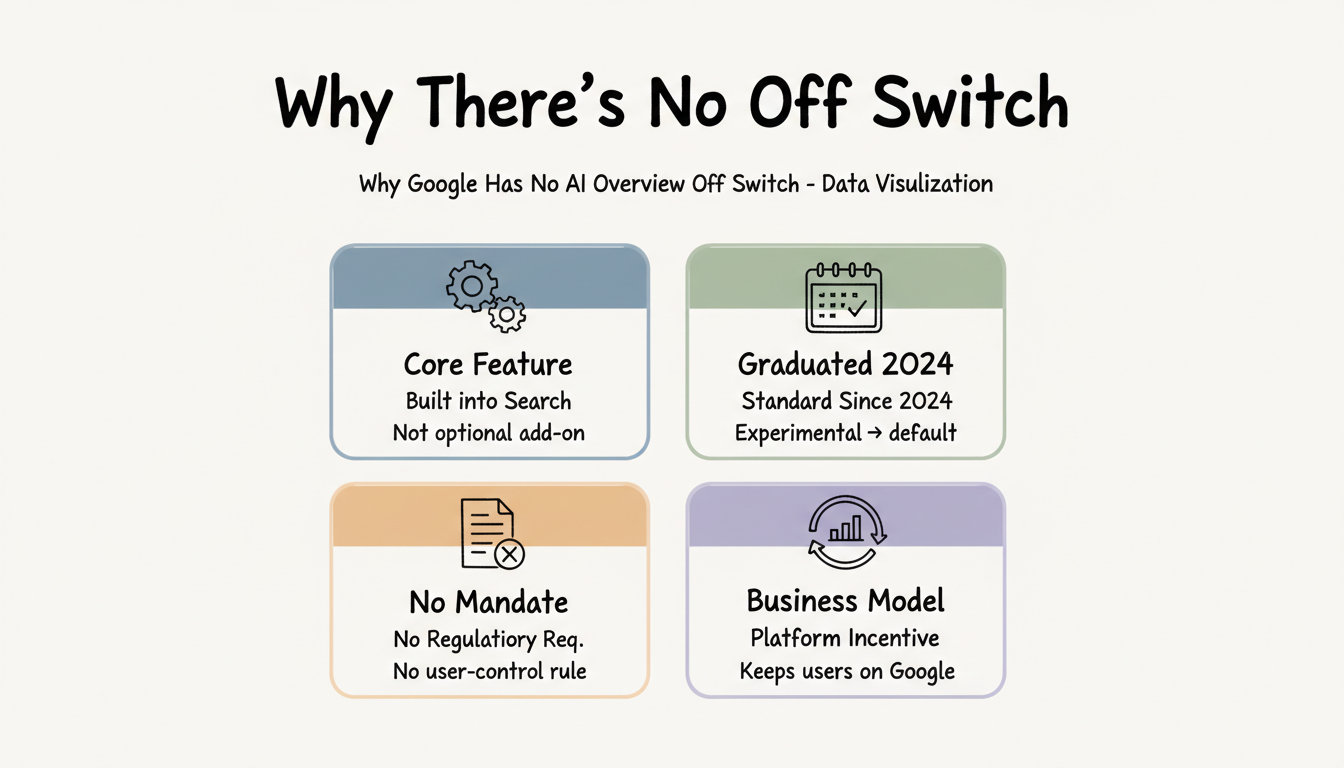
According to How2Shout's comprehensive analysis, Google views AI Overviews as core improvements to Search, not optional add-ons. While Google does offer experimental toggles through Search Labs for some users, these are inconsistent, regionally limited, and don't guarantee complete removal of AI from your search experience.
Why no off switch exists:
Despite the lack of an official setting, several approaches reduce or hide AI Overviews effectively.
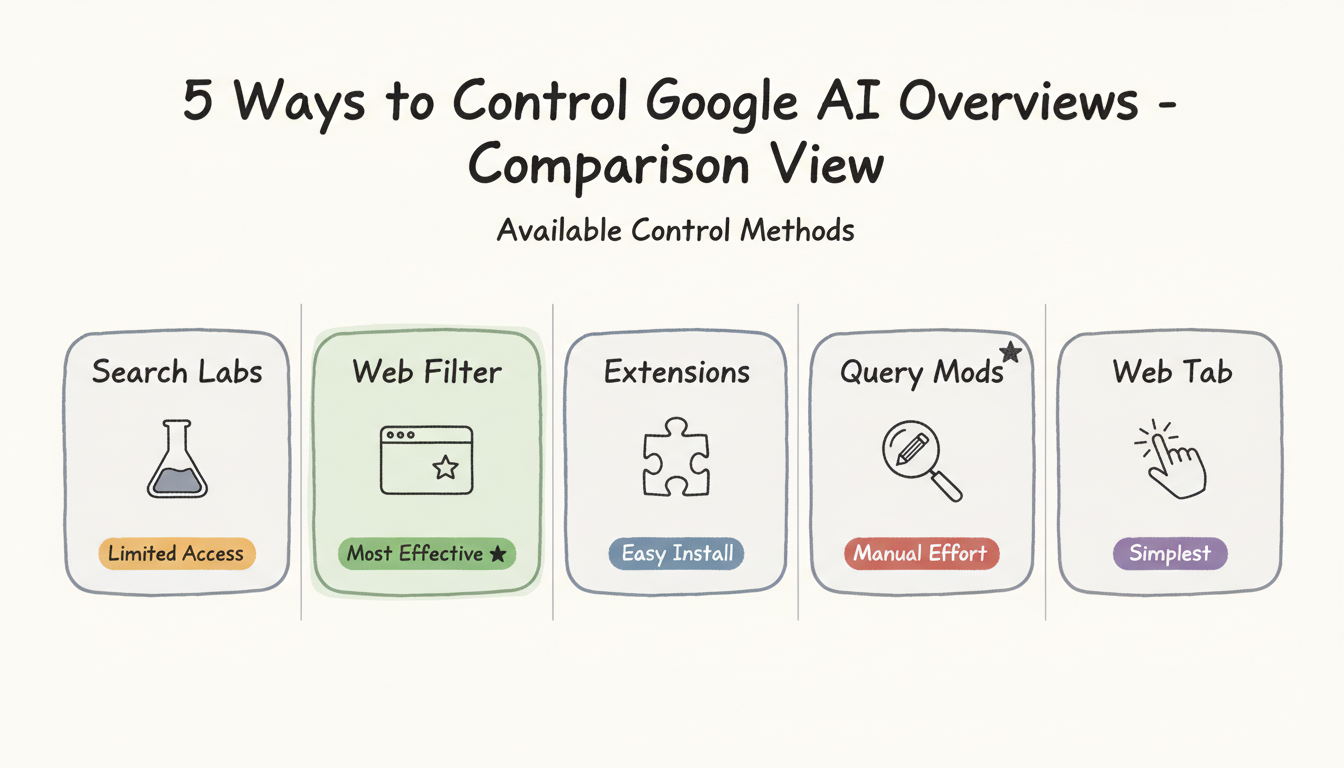
Google Search Labs offers experimental toggles that can reduce AI content in some cases.
To check if available:
Important limitations:
According to How2Shout, Search Labs is not available for Google Workspace accounts, school accounts, certain regions, or users whose accounts weren't included in the experiment. Even when the toggle exists, it doesn't disable all AI Overviews—only experimental features.
Availability Factor | Impact |
Google Workspace accounts | No access |
School/educational accounts | No access |
Certain geographic regions | No access |
Standard consumer accounts | Variable access |
The most reliable workaround sets Google's "Web" tab as your default search, bypassing AI Overviews entirely.
According to Pureinfotech's guide, you can configure Chrome to search Google's "Web" tab, which shows only traditional web results without AI Overviews.
Chrome Setup:
Microsoft Edge Setup:
This method sends all searches to Google's Web tab, which displays traditional results without AI Overviews, images, videos, or answer boxes.
Extensions can hide AI Overview modules from your view while still using standard Google Search.
Popular options:
According to The Register's guide, browser extensions using CSS can hide AI Overviews and optionally remove sponsored links, images, videos, and "people also ask" boxes.
Extension types:
Pros and cons:
Approach | Pros | Cons |
Extensions | Easy to install, automatic | May break with Google updates |
Custom CSS | Precise control | Requires technical knowledge |
Ad blockers | Multi-purpose | Can affect other site functions |
Specific search behaviors naturally avoid AI Overviews, similar to how AI-powered search tools employ different query strategies for optimized results.
Effective techniques:
According to LinkedIn's analysis of AI Overview controls, using more specific queries that force narrow retrieval naturally reduces AI Overview appearance.
The simplest approach: manually switch to the Web tab after each search.
Steps:
This removes the AI Overview and shows only conventional link results. The downside is repeating this for every search.
Understanding limitations helps set realistic expectations.
Content creators cannot selectively opt out of AI Overview citations while maintaining normal search visibility.
According to ALMCORP's comprehensive analysis, Google currently provides no mechanism to opt out of AI Overview citations while maintaining normal search visibility. Your options are limited to blocking Googlebot entirely (which eliminates all Google indexing), noindexing specific content, or paywalling content.
No Google Account setting exists to disable AI Overviews globally. The feature operates at the search level, not the account level.
Mobile workarounds are more limited than desktop options. Browser extensions generally don't work on mobile, and custom search engine configurations require additional steps.
AI Overview availability and control options vary by region, much like how local AEO services must adapt to regional search behavior differences.
United States: Full AI Overview deployment, limited opt-out options European Union: GDPR regulations may require more explicit consent mechanisms Other regions: Rolling deployment with varying feature availability
According to Shelly Palmer's analysis, in Europe, GDPR requires explicit opt-in consent for AI features in some Google products, so defaults operate differently based entirely on regulation.
Gmail's new Gemini AI features can be controlled, though with tradeoffs.
To disable Gmail AI features:
Tradeoff: Turning off Gemini AI features also disables autocorrect, spell check, desktop notifications, package tracking, and email category sorting.
Understanding how to turn on Google AI Overviews can be just as valuable as knowing how to disable them—the same controls that minimize AI can help you strategically enable it when beneficial. For professionals managing multiple clients, working with an AEO marketing consultant can help develop sophisticated strategies that leverage AI Overviews when advantageous while maintaining control over visibility.
Google AI Overview control requires workarounds, not official settings:
The landscape for AI search control continues evolving. User feedback and regulatory pressure may eventually lead to more official options, but for now, these workarounds represent the available methods for managing AI Overviews in your search experience.
By submitting this form, you agree to our Privacy Policy and Terms & Conditions.