February 19, 2026


Google AI Overviews have become standard in search results, appearing at the top of many queries with AI-generated summaries. Some users find them helpful. Others want them gone—preferring the traditional list of clickable results they've used for decades.
The frustrating truth: Google doesn't offer an official "off switch" for AI Overviews. However, several workarounds let you minimize or bypass them effectively.
This guide covers every method available in 2026 to control AI Overviews—whether you're a user wanting classic search or a website owner considering answer engine optimization services for their content.
AI Overviews are AI-generated summaries that appear at the top of Google search results. They attempt to answer your query directly by synthesizing information from multiple web sources.
Why users want to disable them:
According to Pew Research Center data, users are less likely to click on links when AI summaries appear—often ending their browsing session without visiting the actual sources. This zero-click behavior raises questions about accuracy and content ownership, particularly for those implementing search engine optimization with AI strategies.
Common complaints include:
Issue | Description |
Accuracy concerns | AI Overviews have delivered incorrect health advice and fabricated facts |
Source quality | Citations sometimes link to unreliable or unreliable sources |
User experience | Summaries force users to scroll past AI content to reach actual websites |
Information control | Users prefer evaluating sources themselves rather than trusting AI synthesis |
According to The Tab's analysis, Google has already had to remove false information, tweak algorithms, and add visible sources due to AI Overview errors—but users still have no official way to turn them off completely.
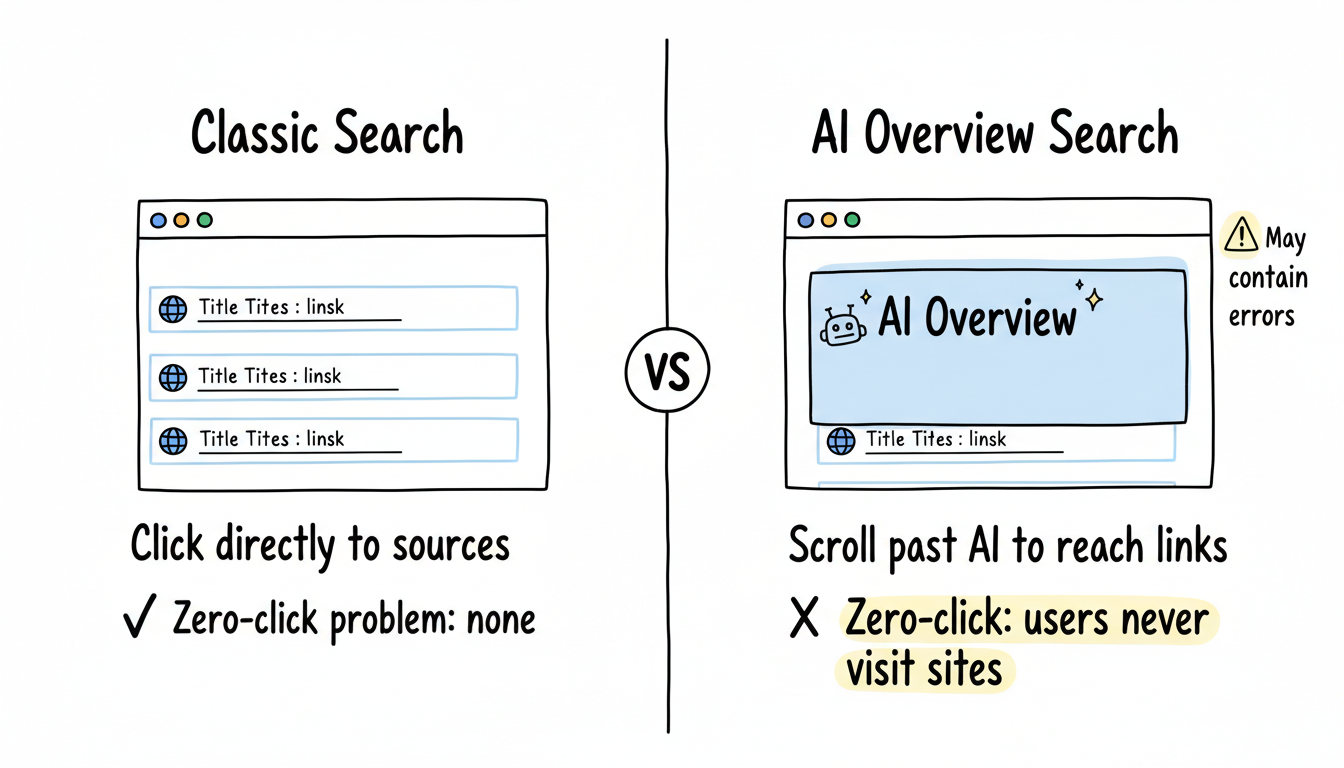
The most reliable method involves changing your browser's default search settings to use Google's hidden "Web" filter, which shows only traditional links. Understanding when and how disabling Google AI Overviews makes sense can help you make informed decisions.
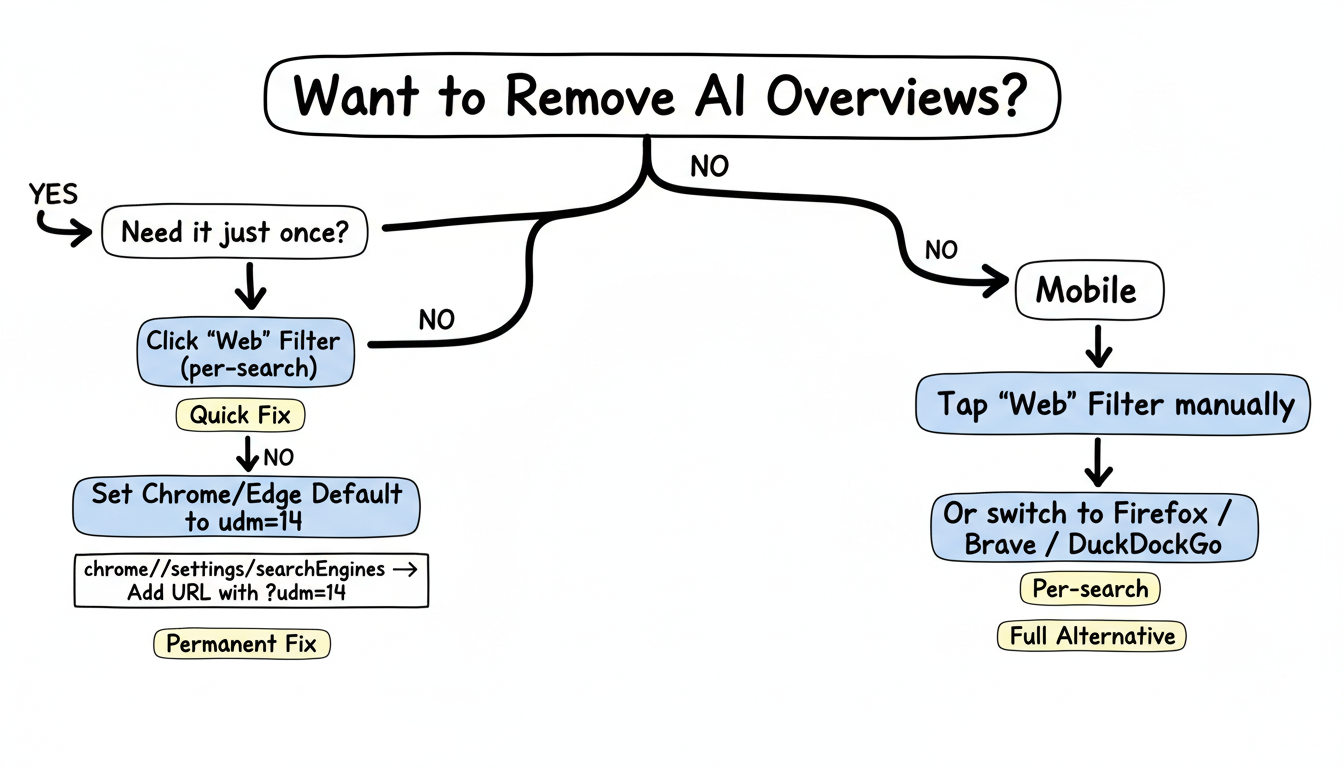
Google added a "Web" filter alongside AI Overviews that strips results back to traditional blue links.
Steps:
Limitation: This is a per-search solution. You must select "Web" every time.
According to PureInfoTech, you can configure Chrome to automatically search Google's Web tab.
Steps for Chrome:
The udm=14 parameter forces Google to display the Web-only view without AI Overviews.
According to PureInfoTech, Edge users follow a similar process:
Mobile users have fewer options since you cannot modify search engine parameters as easily. Understanding mobile AEO optimization can help you adapt to these constraints.
On mobile browsers:
Some mobile browsers allow custom search engines:
According to LinkedIn analysis, some users may find temporary toggles:
Important: These settings are inconsistent across accounts and regions. What works today may not exist tomorrow.
Google provides limited settings that may affect AI Overview behavior. For businesses managing AI search team structure roles, understanding these controls is essential.
Search Labs is Google's experimental features program. If enrolled, you might see toggles for "AI Overviews and more."
To check:
Caveat: According to Nomadz Digital, turning this off in Labs doesn't stop all AI Overviews everywhere—it reduces them in supported cases only.
Some users report that adjusting data personalization settings affects AI behavior:
Results vary by account and region.
Extensions provide the most comprehensive (though imperfect) solution.
Extension | Browser | Function |
Bye Bye, Google AI | Chrome | Hides AI Overviews via CSS |
uBlock Origin | Chrome/Firefox | Cosmetic filtering with custom rules |
Hide Google AI Overview | Chrome | Specifically targets AI Overview elements |
According to The Register:
According to The Tab, browser extensions are fragile—Google changes its backend constantly, and extensions often break overnight. The search settings method (changing default to Web filter) is more reliable long-term.
For users who want to avoid AI entirely, alternatives exist. Many are exploring you.com AI search optimization strategy as a viable alternative.
DuckDuckGo doesn't implement AI Overviews in the same way. Switch your default search engine for a cleaner experience.
Bookmark this URL for direct access to Web-only results:
https://www.google.com/search?q=YOUR+SEARCH+TERM&udm=14Replace YOUR+SEARCH+TERM with your query (use + for spaces).
According to LinkedIn analysis, certain search patterns reduce AI Overview triggers:
If you're a website owner or publisher, you may wonder if you can prevent your content from appearing in AI Overviews. Many businesses are adapting their AEO strategy to work with these new realities.
According to ALM Corp's analysis, Google currently provides no mechanism to opt out of AI Overview citations while maintaining normal search visibility.
Your options are limited to:
Option | Result |
Block Googlebot entirely | Eliminates AI citations AND traditional rankings |
Noindex specific content | Removes pages from Google's index completely |
Paywall content | Restricts access to registered users only |
None of these allow selective AI Overview exclusion. You cannot block AI Overviews while keeping traditional search rankings. Understanding AEO SEO GEO relationships helps contextualize these tradeoffs.
According to Mashable, the EU has opened a formal antitrust investigation into Google's use of publisher content for AI Overviews, examining whether the company used web publisher content "without appropriate compensation to publishers and without offering them the possibility to refuse such use of their content."
According to Search Engine Journal, 79% of major news publishers now block AI training bots, and 71% also block retrieval bots that affect AI citations.
However, according to Digiday, if publishers use Google-Extended to block AI training, their content can still appear in AI Overviews. To completely stop Google's AI from using their data, they would have to block Googlebot entirely—eliminating their primary traffic source.
The AI Overview landscape continues to evolve. Examining AI overview case studies reveals patterns in how different organizations are adapting.
According to ALM Corp:
Many users and publishers are advocating for:
Google has shown no indication of implementing a universal off switch. According to LinkedIn analysis, Google admits AI Overview issues while simultaneously pushing AI search harder through new features like G.ai. Understanding SearchGPT vs Google AI when to prioritize each helps businesses allocate resources effectively.
The trajectory suggests AI features will expand rather than contract, making workarounds increasingly important for users who prefer traditional search.
Controlling Google AI Overviews in 2026 requires workarounds since no official off switch exists:
No official method exists to completely disable AI Overviews across all Google searches. However, you can modify your browser's default search settings to use Google's "Web" filter, which displays only traditional links without AI summaries.
Using the Web filter removes not just AI Overviews but also images, videos, and other enhanced results. You get text links only—a cleaner but more limited search experience.
Currently, no. Google provides no mechanism to exclude your content from AI Overviews while maintaining normal search rankings. Your only options—blocking Googlebot entirely or using noindex—would eliminate your traditional search visibility too.
Extensions like "Bye Bye, Google AI" can hide AI Overviews using CSS filtering, but they often break when Google updates its interface. The search settings method (using udm=14 parameter) is more reliable long-term.
By submitting this form, you agree to our Privacy Policy and Terms & Conditions.