How to Advertise on Bing: Step-by-Step Guide for 2026

Bing might not have Google's market share, but it offers something many advertisers overlook: access to over 100 million daily searchers with less competition and lower costs. If you're ready to expand your paid search reach beyond Google, this guide walks you through everything you need to know about advertising on Bing through Microsoft Advertising.

Why Advertise on Bing

Before diving into the how-to, let's understand why Bing advertising deserves a place in your marketing strategy.

The Bing Audience Advantage

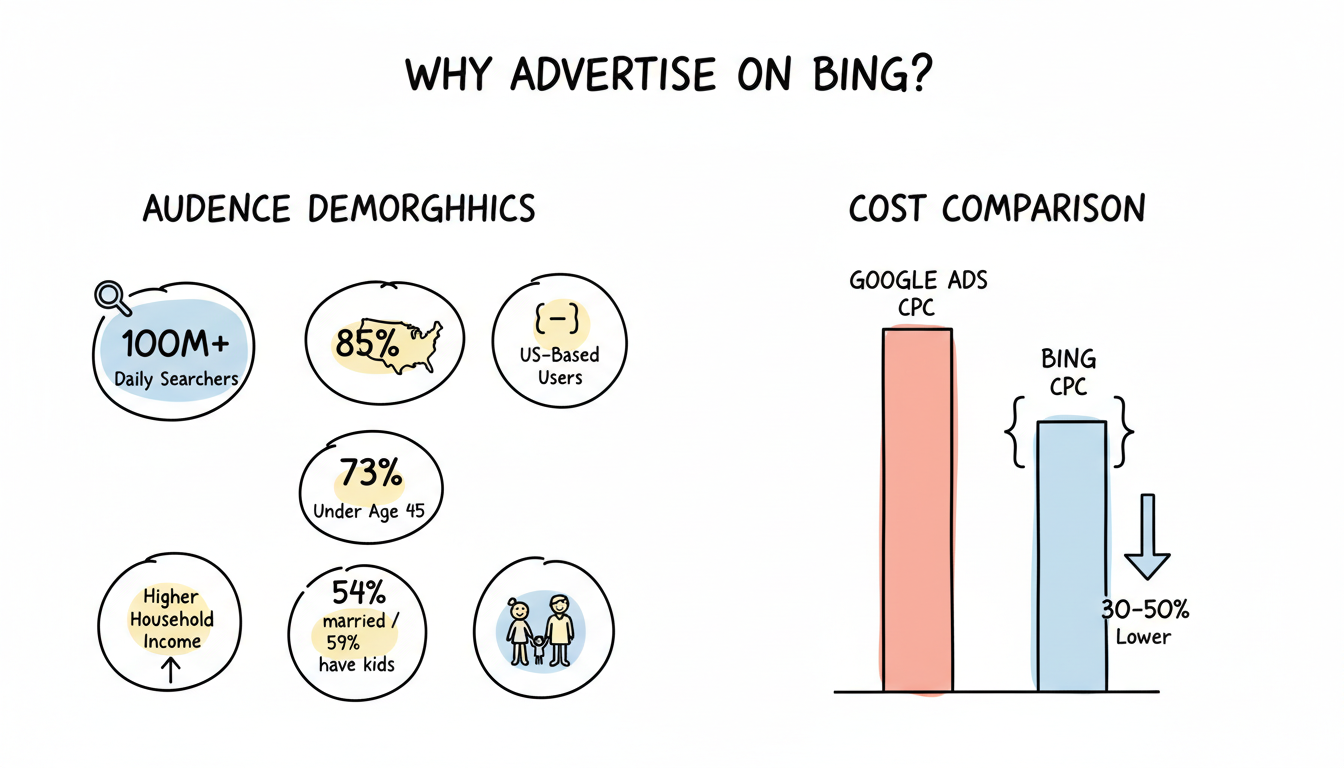
According to Bing statistics, Bing's user base includes some attractive characteristics for advertisers:

  • Over 100 million daily searchers across the Microsoft Search Network
  • 85% of users located in the US
  • 73% of users under age 45 (largest group is 25-34)
  • 54% married, 59% have children living with them
  • Users tend to have higher household incomes and purchasing power

Cost Advantages

Microsoft Ads typically delivers 30-50% lower CPC rates than Google Ads. With less advertiser competition, your budget stretches further while still reaching high-intent searchers.

The Microsoft Search Network includes Bing, Yahoo, AOL, DuckDuckGo, Ecosia, and partner sites—giving you access to audiences you can't reach through Google alone.
Step 1: Create Your Microsoft Advertising Account

Getting started with Bing advertising begins with account setup.

Account Creation Process

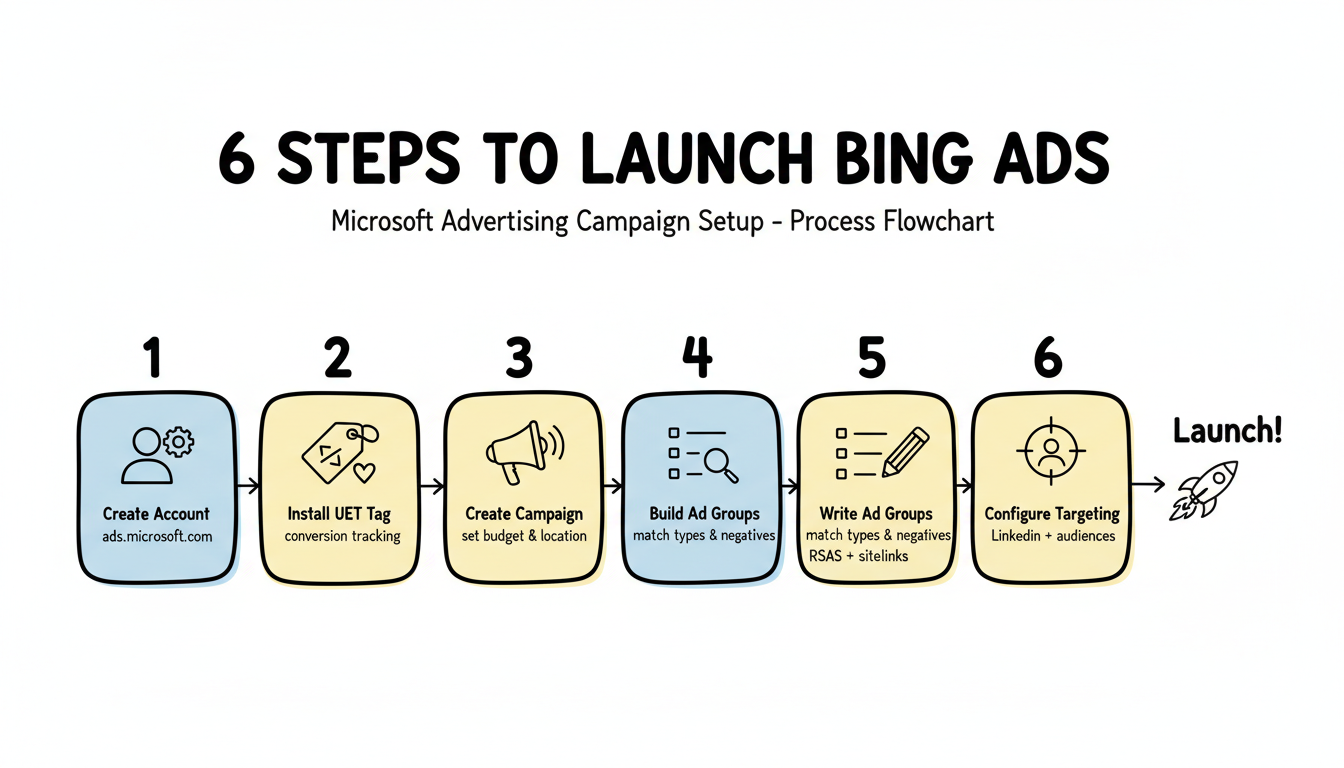
  1. Visit ads.microsoft.com and click "Sign up now"
  2. Sign in with a Microsoft account (or create one using any email address)
  3. Enter your business information:
    • Business name
    • Business website URL
    • Country/region
    • Time zone
    • Currency
  4. Set up billing: Add a payment method (credit card, debit card, or PayPal)
  5. Verify your account: Confirm your email address

Import from Google Ads (Optional)

If you already run Google Ads, Microsoft makes expansion easy:

  1. In your new Microsoft Advertising account, click Import > Import from Google Ads
  2. Sign in to your Google account and authorize access
  3. Select the campaigns you want to import
  4. Review and adjust settings (budgets, bids, targeting)
  5. Complete the import

Microsoft allows you to import campaigns directly from Google Ads, including Performance Max campaigns, saving significant setup time.

Step 2: Set Up Conversion Tracking

Before launching campaigns, install tracking to measure results. Microsoft uses the Universal Event Tracking (UET) tag.

Installing the UET Tag

  1. In Microsoft Advertising, go to Tools > Conversion tracking > UET tag
  2. Click Create UET tag
  3. Name your tag (e.g., "Main UET Tag")
  4. Choose your installation method:
    • Install yourself: Copy the tag code and add it to every page of your website (in the <head> section)
    • Use a tag manager: Add via Google Tag Manager or similar
  5. Verify installation using the UET Tag Helper browser extension

Setting Up Conversion Goals

Once your UET tag is active:

  1. Go to Tools > Conversion tracking > Conversion goals
  2. Click Create conversion goal
  3. Choose your goal type:
    • URL (page view, like a thank-you page)
    • Event (custom actions like form submissions)
    • Duration (time spent on site)
    • Pages viewed per visit
  4. Configure goal settings:
    • Conversion name
    • Revenue value (static or dynamic)
    • Count (all conversions or unique)
    • Conversion window
  5. Save your goal

Enhanced Conversions

Microsoft's Enhanced Conversions improve tracking accuracy by using hashed first-party data. Enable this when creating conversion goals to better attribute conversions as third-party cookies phase out.

Step 3: Create Your First Campaign

With tracking in place, you're ready to build campaigns.

Campaign Types Available

Campaign Type Best For
Search Text ads on search results
Shopping Product listings for ecommerce
Audience Display ads across Microsoft network
Performance Max AI-driven cross-channel campaigns

For most beginners, start with Search campaigns to capture high-intent traffic.

Campaign Setup Steps

  1. Click Create campaign in your dashboard
  2. Select your campaign goal:
    • Visits to my website
    • Conversions on my website
    • Phone calls to my business
    • Dynamic Search Ads
  3. Choose Search as your campaign type
  4. Configure campaign settings:
    • Campaign name: Descriptive name (e.g., "Brand - Search")
    • Budget: Daily budget amount
    • Location targeting: Countries, regions, or radius
    • Language targeting: Languages your customers use

Bid Strategy Selection

Choose how you want to bid:

Strategy Best For
Manual CPC Full control, learning phase
Enhanced CPC Manual with smart adjustments
Maximize Clicks Traffic focus, limited budget
Maximize Conversions Conversion focus, sufficient data
Target CPA Specific cost-per-acquisition goal
Target ROAS Specific return target

Start with manual bidding to understand your metrics, then transition to automated strategies once you have at least 30 conversions per month.
Step 4: Build Your Ad Groups and Keywords

Campaign structure determines success. Keep ad groups tightly themed.

Ad Group Creation

  1. Create an ad group within your campaign
  2. Name it based on theme (e.g., "Project Management Software")
  3. Set default bid (your maximum CPC)
  4. Add 5-10 closely related keywords

Keyword Match Types

Match Type Syntax Triggers
Broad match keyword Related searches, synonyms
Phrase match "keyword" Searches containing phrase
Exact match [keyword] Exact term and close variants

Start with exact match keywords for tighter control, then expand to phrase and broad match as you gather data.

Negative Keywords

Add negative keywords to prevent wasted spend:

  • "free" (unless you offer free products)
  • "jobs" or "careers" (job seekers, not buyers)
  • "login" or "sign in" (existing users)
  • Competitor misspellings that don't convert

Step 5: Write Your Ads

Microsoft Ads uses Responsive Search Ads (RSAs) as the primary ad format.

RSA Components

  • Headlines: Up to 15 headlines (30 characters each)
  • Descriptions: Up to 4 descriptions (90 characters each)
  • Display URL paths: Two 15-character paths
  • Final URL: Landing page destination

Ad Writing Best Practices

  1. Include your keyword in headlines: Match search intent
  2. Highlight unique value: What makes you different
  3. Add calls to action: "Get a Quote," "Book Demo," "Shop Now"
  4. Use numbers and specifics: "Save 30%," "24/7 Support"
  5. Write multiple variations: Microsoft tests combinations automatically

Ad Extensions

Enhance your ads with extensions:

  • Sitelink extensions: Additional page links
  • Callout extensions: Additional text highlights
  • Call extensions: Phone number
  • Location extensions: Business address
  • Price extensions: Product/service pricing
  • Image extensions: Visual elements

Step 6: Configure Targeting

Microsoft offers powerful targeting options—including some exclusive features.

LinkedIn Profile Targeting (Exclusive)

Microsoft is the only search platform offering LinkedIn targeting because Microsoft owns LinkedIn. Target by:

  • Company: 80,000+ companies available
  • Industry: 148 industries
  • Job function: 26 job functions

This is invaluable for B2B advertisers reaching decision-makers.

Device Targeting

Adjust bids by device:

  • Desktop (Bing's strongest platform)
  • Mobile
  • Tablet

Consider increasing desktop bids, as Bing holds 12.21% of desktop search market share.

Audience Targeting

Layer additional audiences:

  • In-market audiences: Users actively researching
  • Remarketing: Past website visitors
  • Custom audiences: Your customer data
  • Similar audiences: Lookalikes of your customers

Launch Checklist

Before going live, verify these items:

Technical Setup

  • [ ] UET tag installed and verified
  • [ ] Conversion goals created
  • [ ] Auto-tagging enabled

Campaign Settings

  • [ ] Budget set appropriately (start conservative)
  • [ ] Location targeting matches service area
  • [ ] Language targeting correct
  • [ ] Bid strategy selected
  • [ ] Ad schedule configured (if needed)

Ad Groups

  • [ ] Keywords organized by theme
  • [ ] Negative keywords added
  • [ ] Match types appropriate

Ads

  • [ ] Multiple headlines written
  • [ ] Multiple descriptions written
  • [ ] CTAs included
  • [ ] Extensions added

Tracking

  • [ ] Google Analytics linked (optional)
  • [ ] Reporting dashboard set up

First Week: What to Monitor

After launch, check these metrics daily:

Metric What to Look For
Impressions Are ads showing?
Clicks Are people clicking?
CTR Above 2% for search
Avg. CPC Within budget expectations
Search terms Any irrelevant queries?
Conversions Are goals tracking?

Add negative keywords based on search terms to eliminate waste. Adjust bids based on early performance data.

Frequently Asked Questions

How much does it cost to advertise on Bing?

Bing advertising costs vary by industry and competition. CPCs are typically 20-30% lower than Google. You set your own daily budget—start with $10-20/day to gather data, then scale based on results.

Can I run Bing Ads and Google Ads at the same time?

Yes, running both platforms maximizes your reach. Many advertisers start with Google, optimize campaigns, then import to Microsoft Ads for incremental traffic at lower costs.

How long until I see results from Bing Ads?

Campaigns can generate clicks within hours of launch. Meaningful optimization data typically takes 2-4 weeks. Expect 60-90 days before campaigns reach peak performance.

Is Bing Ads worth it for small businesses?

Yes. Lower competition means better ad positions at lower costs. If your audience includes US-based users 25-45 with purchasing power, Bing delivers strong ROI—often better than Google for the same budget.


Key Takeaways

  • Over 100 million daily users search on Bing, with 85% located in the US
  • CPCs are 20-50% lower than Google Ads due to less competition
  • Import existing Google campaigns to save setup time
  • Install UET tracking first before launching campaigns
  • LinkedIn targeting is exclusive to Microsoft Ads—invaluable for B2B
  • Start with exact match keywords and expand as you gather data

Need help setting up your Bing Ads campaigns? Contact our team for expert assistance, or schedule a consultation to discuss your Microsoft Advertising strategy.

Get started with Stackmatix!

Get Started

Share On:

blog-facebookblog-linkedinblog-twitterblog-instagram

Join thousands of venture-backed founders and marketers getting actionable growth insights from Stackmatix.

Thank you! Your submission has been received!
Oops! Something went wrong while submitting the form.

By submitting this form, you agree to our Privacy Policy and Terms & Conditions.

Related Blogs