TikTok Ads Manager Tutorial: Complete Walkthrough

TikTok Ads Manager is the platform where you create, manage, and optimize all your TikTok advertising campaigns. Whether you're launching your first campaign or managing ads for multiple clients, understanding how to navigate Ads Manager efficiently will save you time and improve your results.

This tutorial walks you through the essential features of TikTok Ads Manager, from the dashboard overview to advanced automation tools.

Ads Manager Overview

TikTok Ads Manager is the central hub for TikTok advertising. It's where you build campaigns, define targeting, set budgets, upload creative, and analyze performance data.

To get started:

  1. Go to ads.tiktok.com and create an account (or sign in)
  2. Complete business verification with your company information
  3. Set up your payment method
  4. Install the TikTok Pixel on your website (if driving conversions)

Once your account is active, you'll land on the Ads Manager dashboard. This is your command center for all advertising activity.

Account Structure

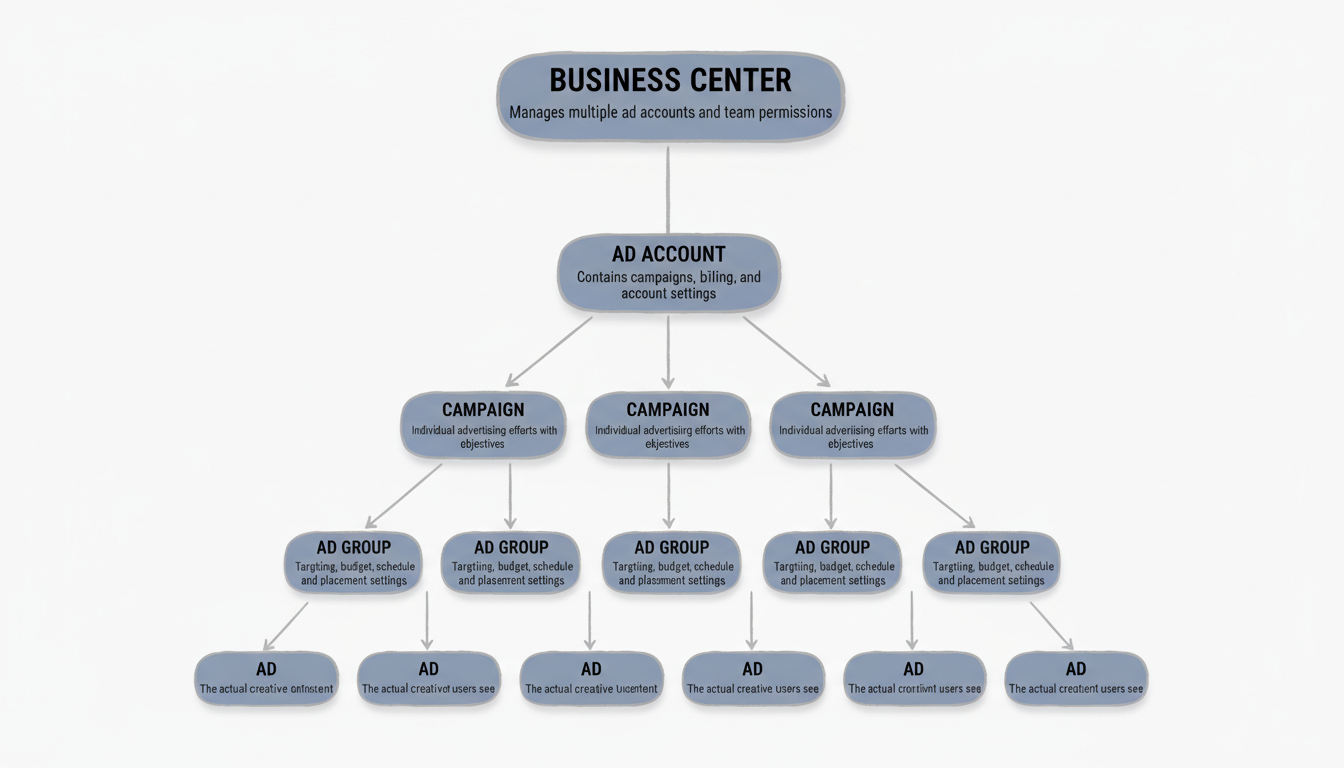
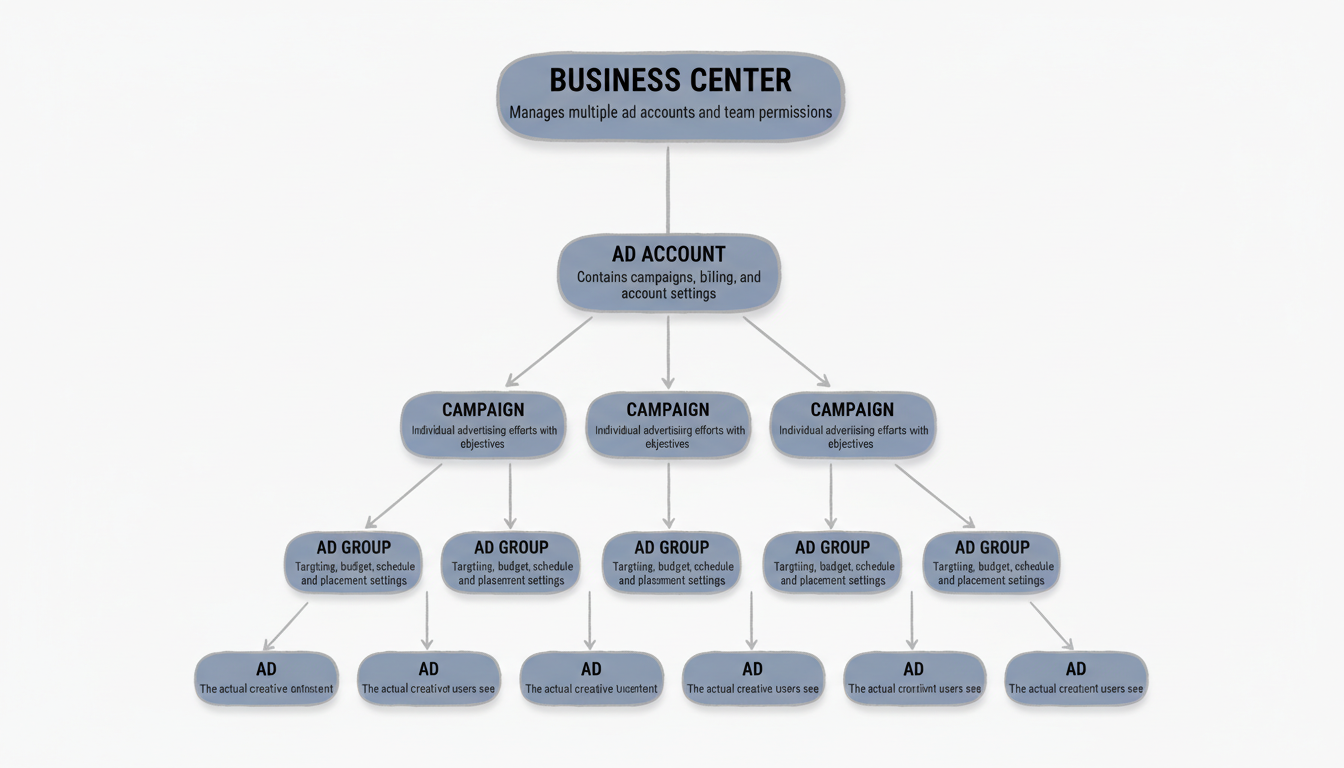
TikTok Ads Manager uses a hierarchical structure:

  • Business Center: Manages multiple ad accounts, team permissions, and shared assets
  • Ad Account: Contains all campaigns, billing, and account-level settings
  • Campaign: The top level of individual advertising efforts, where you set objectives
  • Ad Group: Contains targeting, budget, schedule, and placement settings
  • Ad: The actual creative (video, images, text) users see

Most advertisers work primarily at the Campaign, Ad Group, and Ad levels within a single ad account. Agencies managing multiple clients use Business Center to organize everything.
Dashboard Navigation

The Ads Manager dashboard provides a quick overview of account health and performance:

Main navigation areas:

  • Campaigns: Create and manage all campaigns, ad groups, and ads
  • Assets: Access audiences, pixels, creative library, and catalogs
  • Reporting: Build custom reports and analyze performance data
  • Tools: Automation rules, split testing, and optimization features

Dashboard Widgets

According to TikTok's help documentation, the dashboard includes:

  1. Recommendations: AI-suggested actions to improve account performance
  2. Account Overview: Balance, spend, and budget status at a glance
  3. Ad Group Status: View active, partially delivering, and paused ad groups
  4. Performance Trends: Visualized metrics over your selected date range
  5. Insights: Top-performing ads and audience data
  6. Activity Log: Track changes and operations across your account

Use the calendar icon to filter performance data by date range. The Compare toggle lets you view two date ranges side-by-side—useful for week-over-week or month-over-month analysis.

Campaign Structure

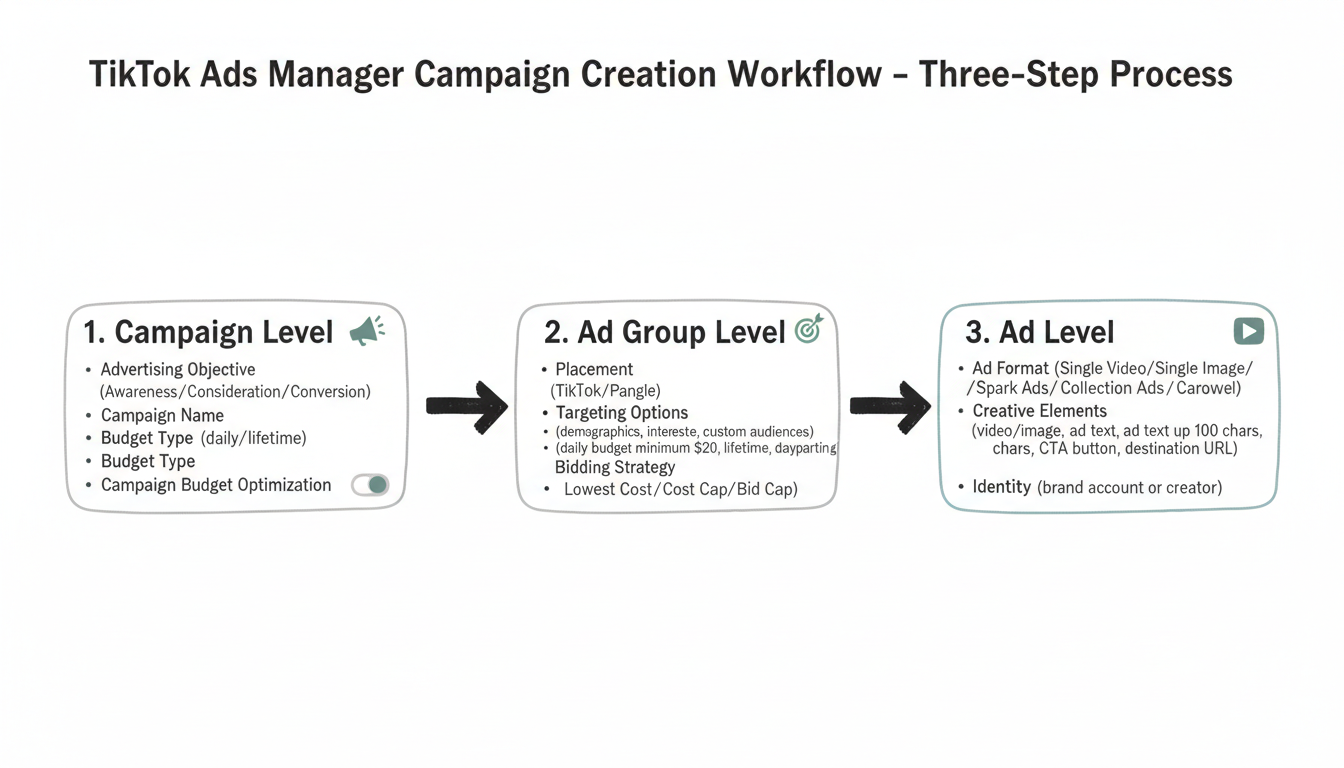
Creating campaigns in TikTok Ads Manager follows a three-step process: Campaign > Ad Group > Ad.
Step 1: Campaign Level

At the campaign level, you define:

Advertising Objective: Choose what you want to achieve:

  • Awareness: Reach (maximize impressions)
  • Consideration: Traffic, Video Views, Community Interaction
  • Conversion: Conversions, App Installs, Lead Generation, Product Sales

Campaign Name: Use a naming convention that helps you identify campaigns later. Include details like objective, date, audience, or product.

Budget Type: Set a daily or lifetime budget at the campaign level if using Campaign Budget Optimization (CBO).

Campaign Budget Optimization (CBO): When enabled, TikTok automatically distributes budget across ad groups based on performance. CBO works best with 3-5 active ad groups sharing the same optimization goal.

Step 2: Ad Group Level

Ad groups contain your targeting, scheduling, and delivery settings:

Placement: Choose where ads appear (TikTok only, or additional placements like Pangle)

Targeting Options:

  • Demographics: Location, age, gender, language
  • Interests and behaviors: Categories aligned with user activity
  • Device: OS, device model, connection type
  • Custom audiences: Website visitors, customer lists, lookalikes
  • Automatic targeting: Let TikTok find your best audience

Budget and Schedule:

  • Daily budget: Consistent spend per day (minimum $20 per ad group)
  • Lifetime budget: Total spend over the campaign duration
  • Schedule: Start/end dates and dayparting (specific hours)

Bidding Strategy:

  • Lowest Cost: TikTok maximizes results within your budget
  • Cost Cap: Set a target CPA; TikTok tries to stay under it
  • Bid Cap: Set a maximum bid per result

Step 3: Ad Level

The ad level is where you create the actual content users see:

Ad Format:

  • Single Video: One video with destination URL
  • Single Image: Static image (less common on TikTok)
  • Spark Ads: Boost existing organic posts
  • Collection Ads: Video with product tiles
  • Carousel: Multiple images users can swipe

Creative Elements:

  • Video/Image upload
  • Ad text (up to 100 characters)
  • Call-to-action button (Shop Now, Learn More, etc.)
  • Destination URL

Identity: Choose which account appears as the ad publisher (your brand account or a creator's for Spark Ads)

Reporting Features

TikTok Ads Manager provides robust reporting tools to analyze campaign performance.

Campaigns Page Reporting

From the Campaigns tab, view performance at any level (campaign, ad group, or ad):

  1. Select the tab (Campaign, Ad Group, or Ad)
  2. Use the search bar to find specific items
  3. Scroll right to see default metrics
  4. Click "Custom table" to modify visible columns

Pre-built templates include:

  • Shop Ads metrics
  • Reach metrics
  • Branded Mission metrics
  • Standard performance views

Custom Columns

Create custom column configurations to see the metrics most relevant to your goals:

  1. Click "Custom Columns"
  2. Add/remove specific metrics
  3. Save configurations for future use
  4. Apply across different views

Breakdown Options

Analyze performance by time period:

  • Day: See daily trends
  • Week: Weekly aggregates
  • Month: Monthly performance

The Compare feature lets you select two date ranges for side-by-side analysis—useful for measuring improvement over time.

Data Export

Export reports for deeper analysis:

  • Download CSV files for spreadsheet analysis
  • Schedule automated report delivery
  • Share reports with team members or clients

Third-Party Analytics

For agencies managing multiple accounts, native analytics can become time-consuming. Tools like AgencyAnalytics, Metricool, and Sprout Social can:

  • View TikTok data alongside other platforms
  • Automate client reporting
  • Track KPIs across multiple accounts
  • Reduce manual dashboard hopping

Automation Tools

TikTok Ads Manager includes automation features to streamline campaign management.

Automated Rules

Create rules that automatically adjust campaigns based on performance conditions:

  1. Go to Assets > Tools > Automated Rules
  2. Click "Create a Rule"
  3. Define trigger conditions (e.g., CPA exceeds $50)
  4. Set actions (pause ad, adjust budget, send notification)
  5. Choose frequency (continuous, daily, weekly)

Common automated rules:

  • Pause ads when CPA exceeds threshold
  • Increase budget on high-performing ad groups
  • Send alerts when spend is below target
  • Turn off low-CTR creative automatically

Campaign Budget Optimization (CBO)

When you have multiple ad groups, CBO automatically shifts budget to top performers:

  • Enable at the campaign level during setup
  • Works best with 3-5 similar ad groups
  • TikTok reallocates budget in real-time based on results
  • Reduces manual budget management

Split Testing

Test different variables to optimize performance:

  1. Create a split test campaign
  2. Choose the variable to test (creative, audience, placement)
  3. TikTok divides traffic equally between variants
  4. Analyze results and apply learnings

Common Issues

Issue: Campaign Not Delivering

Check these first:

  • Is the ad group budget at least $20/day?
  • Is the campaign schedule active?
  • Has the ad passed review?
  • Is targeting too narrow?
  • Is the bid competitive enough?

Issue: High CPM/CPC

Potential solutions:

  • Broaden targeting to increase available inventory
  • Improve creative quality (higher engagement = lower costs)
  • Test different bidding strategies
  • Adjust bid caps if using manual bidding

Issue: Low Conversion Rates

Check:

  • Is the pixel firing correctly?
  • Does the landing page match the ad promise?
  • Is the audience aligned with your offer?
  • Is creative compelling enough to drive action?

Issue: Ad Rejected

TikTok reviews all ads before they run. Common rejection reasons:

  • Prohibited content categories
  • Misleading claims
  • Poor landing page experience
  • Music licensing issues
  • Policy violations in creative

Review TikTok's advertising policies and adjust your creative accordingly.

Frequently Asked Questions

How do I access TikTok Ads Manager?

Go to ads.tiktok.com and sign in with your TikTok business account credentials. If you don't have an account, you can create one during the sign-up process.

What's the minimum budget for TikTok Ads Manager?

The minimum daily budget is $50 at the campaign level and $20 at the ad group level. Total minimum spend for a campaign is around $500.

Can I manage multiple accounts in Ads Manager?

Yes, use TikTok Business Center to manage multiple ad accounts, grant team access, and share assets across accounts.

How long does ad review take?

Most ads are reviewed within 24 hours. Complex ads or those requiring policy verification may take longer.


Key Takeaways

  • TikTok Ads Manager uses a Campaign > Ad Group > Ad structure
  • Dashboard widgets show account health, recommendations, and performance trends
  • Campaign Budget Optimization (CBO) automatically allocates budget to top-performing ad groups
  • Custom reporting lets you track the specific metrics that matter to your business
  • Automated rules reduce manual work by adjusting campaigns based on performance triggers

Prefer to have experts manage your ads? Let us handle it. Contact us | Get a free consultation

Get started with Stackmatix!

Get Started

Share On:

blog-facebookblog-linkedinblog-twitterblog-instagram

Join thousands of venture-backed founders and marketers getting actionable growth insights from Stackmatix.

Thank you! Your submission has been received!
Oops! Something went wrong while submitting the form.

By submitting this form, you agree to our Privacy Policy and Terms & Conditions.

Related Blogs