February 19, 2026


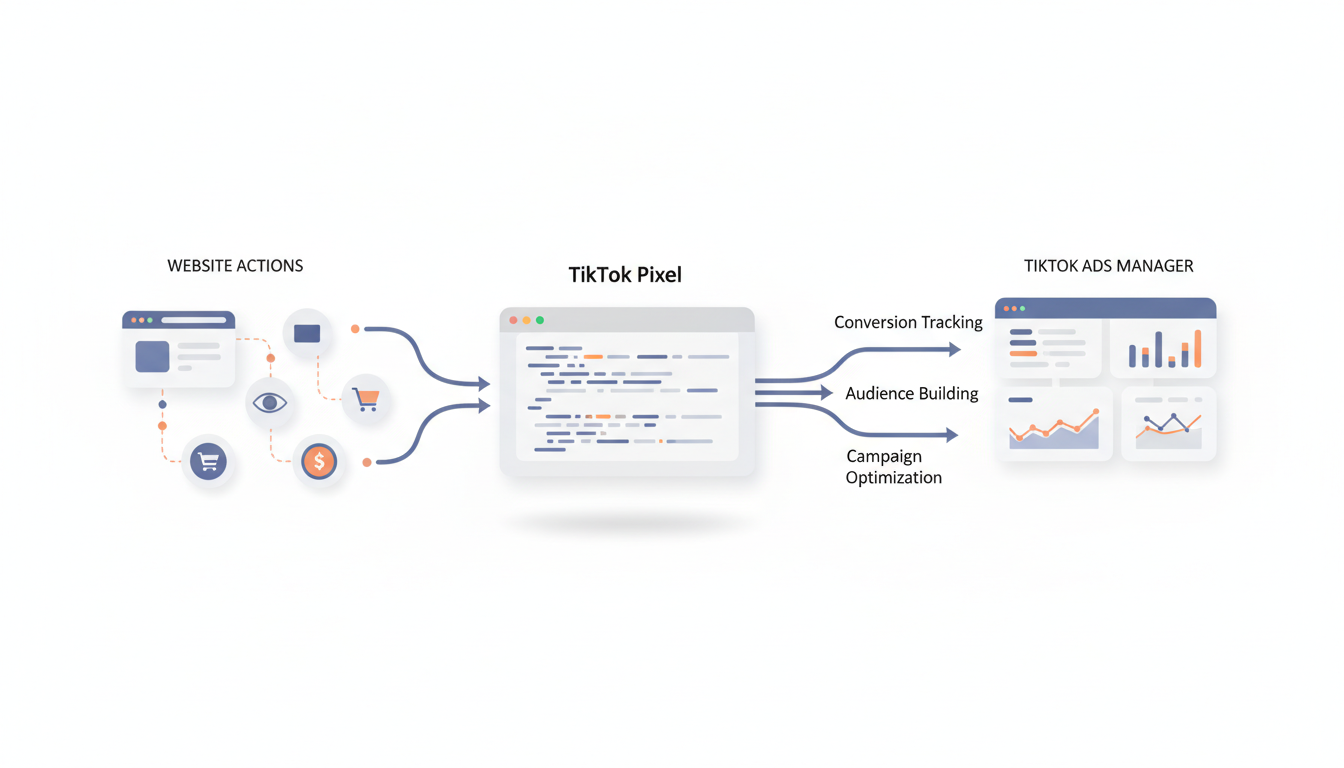
The TikTok Pixel is essential for running successful advertising campaigns. Without proper pixel setup, you can't track conversions, build retargeting audiences, or optimize campaigns for the results that matter to your business. According to TikTok advertising experts, installing your pixel during account setup—before launching any ads—ensures you capture valuable data from day one.
This guide walks you through every step of TikTok Pixel installation and configuration.
The TikTok Pixel is a piece of JavaScript code that you install on your website. It tracks visitor behavior and sends that data back to TikTok Ads Manager, enabling three critical capabilities:
The pixel records when visitors complete valuable actions:
This data shows which ads drive real business results, not just clicks.
Pixel data lets you create custom audiences based on website behavior:
When TikTok knows which users convert, its algorithm can find more users like them. Campaigns optimized for "Complete Payment" events outperform those optimized for clicks.
According to ecommerce advertising guides, installing your pixel early—even before running ads—allows you to build audiences and collect optimization data immediately.
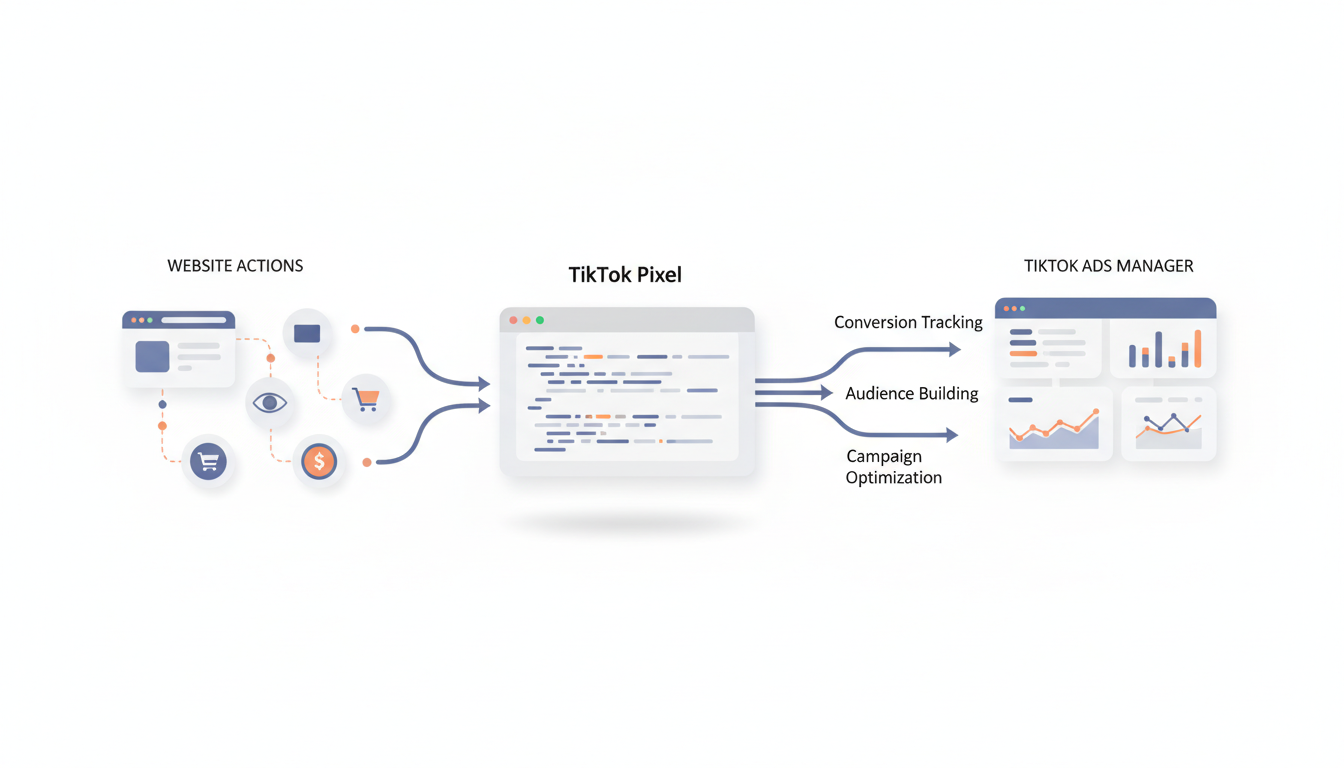
TikTok offers multiple ways to install your pixel depending on your technical setup.
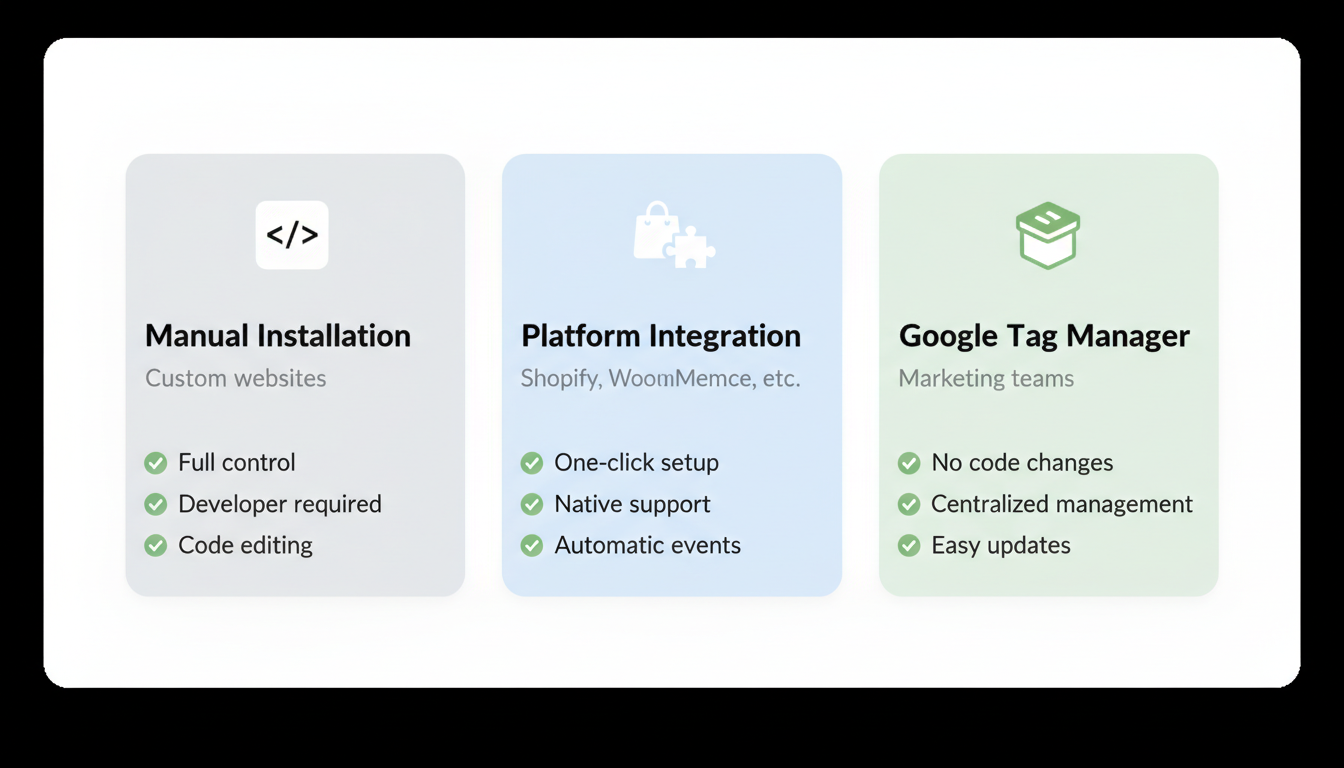
Best for: Custom websites, developers comfortable with code
Step 1: Create Your Pixel
Step 2: Install Base Code
Copy the pixel base code and paste it into your website's <head> section, before the closing </head> tag. The base code should appear on every page.
<!-- TikTok Pixel Base Code -->
<script>
!function (w, d, t) {
  w.TikTokAPI = t; var s = d.createElement("script");
  s.type = "text/javascript"; s.async = true;
  s.src = "https://analytics.tiktok.com/i18n/pixel/sdk.js";
  var x = d.getElementsByTagName("script")[0];
  x.parentNode.insertBefore(s, x);
}(window, document, 'ttq');
ttq.load('YOUR_PIXEL_ID');
ttq.page();
</script>
Replace YOUR_PIXEL_ID with your actual pixel ID from TikTok Ads Manager.
Best for: Shopify, WooCommerce, BigCommerce, and other supported platforms
TikTok offers native integrations with major ecommerce platforms:
Platform | Supported Features |
Shopify | Pixel + Events API |
WooCommerce | Pixel + Events API |
BigCommerce | Pixel |
Wix | Pixel + Events API |
Adobe Commerce | Pixel + Events API |
PrestaShop | Pixel + Events API |
Shopify Installation:
Best for: Marketing teams wanting centralized tag management
According to tracking specialists, Google Tag Manager is the recommended approach for most businesses because it eliminates future code changes when adding other platforms.
GTM Installation Steps:
For event tracking, create additional tags for each conversion action.
The base pixel tracks page views. To track conversions, you need to configure specific events.
TikTok recognizes these standard events for ecommerce:
Event | Trigger | Use Case |
PageView | Page load | Audience building |
ViewContent | Product page view | Retargeting |
AddToCart | Cart addition | High-intent audiences |
InitiateCheckout | Checkout start | Cart abandonment |
AddPaymentInfo | Payment details entered | Late-funnel retargeting |
CompletePayment | Purchase complete | Conversion optimization |
Search | Site search | Intent signals |
Manual Event Code:
Add event code after the base pixel code, triggered by the appropriate user action:
// Track product view
ttq.track('ViewContent', {
  content_type: 'product',
  content_id: 'SKU123',
  content_name: 'Product Name',
  value: 29.99,
  currency: 'USD'
});

// Track purchase
ttq.track('CompletePayment', {
  content_type: 'product',
  content_id: 'SKU123',
  value: 29.99,
  currency: 'USD'
});
Platform Integration Events:
If using Shopify or another supported platform, standard events are automatically configured during installation.
Enable Advanced Matching to improve tracking accuracy by sharing hashed customer data:
Advanced Matching helps TikTok connect more conversions to ad clicks, especially as browser privacy restrictions increase. This feature is particularly valuable when running campaigns through TikTok Ads Manager, as it improves attribution accuracy across your entire account.
For maximum tracking accuracy, implement the Events API alongside the pixel. Server-side tracking:
The Events API sends conversion data directly from your server to TikTok, bypassing browser limitations.
Never launch campaigns without verifying your pixel works correctly.
Install the TikTok Pixel Helper Chrome extension to verify installation:
Green checkmark = Pixel firing correctly Red X = Issue detected (see troubleshooting)
This testing workflow ensures your conversion data flows correctly into TikTok ads reporting and analytics, allowing you to make data-driven optimization decisions.
TikTok Ads Manager provides diagnostic information:
Symptoms: Pixel Helper shows no pixel detected
Solutions:
Symptoms: Base pixel works but events don't appear
Solutions:
If your pixel is installed correctly but you're still experiencing issues with TikTok ads not spending, the problem may lie in your campaign setup rather than pixel configuration.
Symptoms: Events record twice or pixel fires multiple times
Solutions:
Symptoms: Pixel fires but few conversions attributed
Solutions:
Shopify:
WordPress/WooCommerce:
Use the TikTok Pixel Helper Chrome extension to verify your pixel fires correctly. Visit your website with the extension active—a green checkmark indicates successful firing. Also check TikTok Ads Manager under Assets > Events to see if your pixel shows "Active" status and displays recent event data.
You can use one pixel across multiple websites, but it's generally better to create separate pixels for each domain. This keeps data clean and allows independent audience building. If websites share the same product catalog and customer base, a single pixel may work, but most advertisers prefer domain-specific pixels.
The TikTok Pixel is browser-based JavaScript code that tracks user actions on your website. The Events API sends conversion data directly from your server to TikTok. Using both together (called "dual tracking") provides the most accurate data because server-side tracking isn't affected by ad blockers or browser privacy features.
By submitting this form, you agree to our Privacy Policy and Terms & Conditions.