February 19, 2026


Google's AI Overviews have become a permanent fixture in search results—and not everyone appreciates them. Whether you prefer traditional blue links, want faster page loads, or simply find AI summaries unhelpful, you're not alone in seeking ways to disable this feature.
This guide covers the most effective methods to block AI Overviews in 2026, from browser extensions to URL parameters.
Google has made its stance clear: AI Overviews are "a core Google Search feature" and "features cannot be turned off." There's no settings toggle to disable them in your Google account.
However, Google does offer one official workaround: the Web filter. Clicking "Web" in the search filter options displays only text-based links without AI Overviews, Featured Snippets, or other enhanced features.
The limitation: you lose access to Maps, Images, News, and other integrated results with this filter.
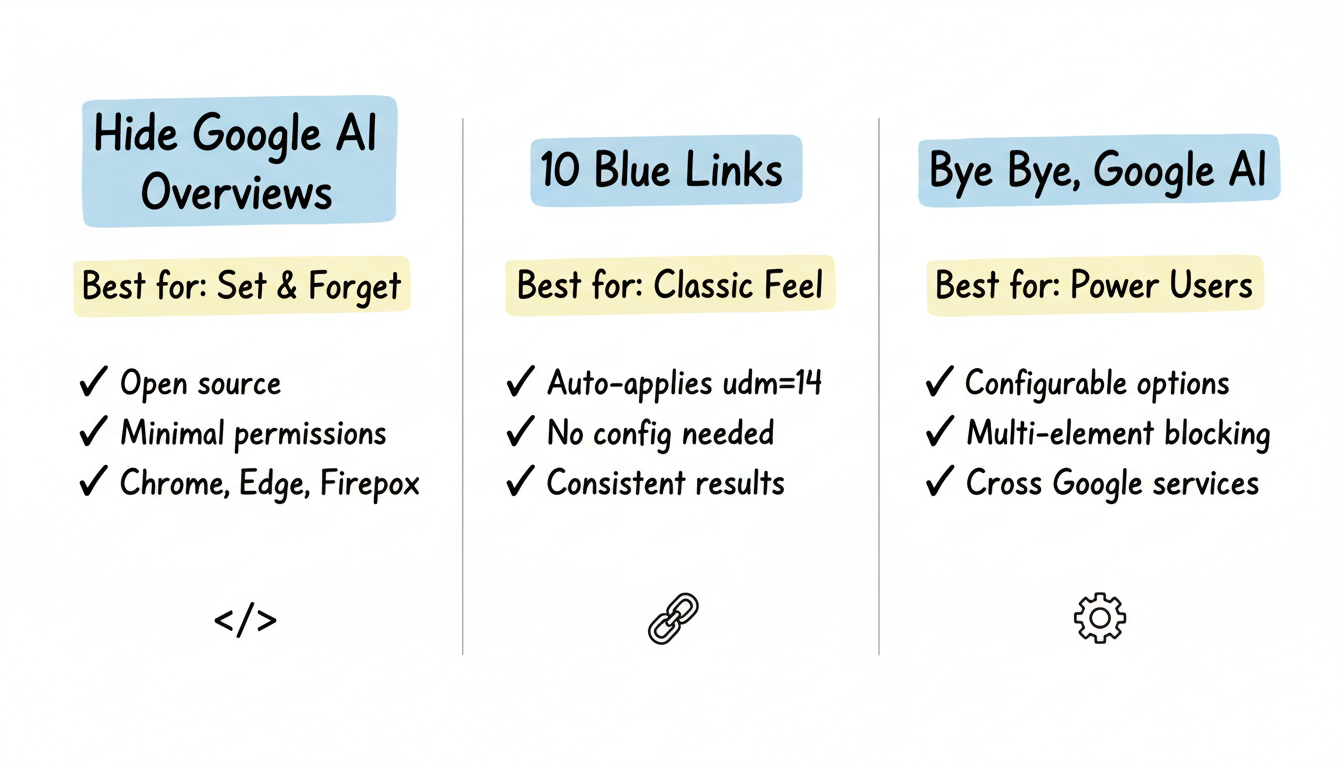
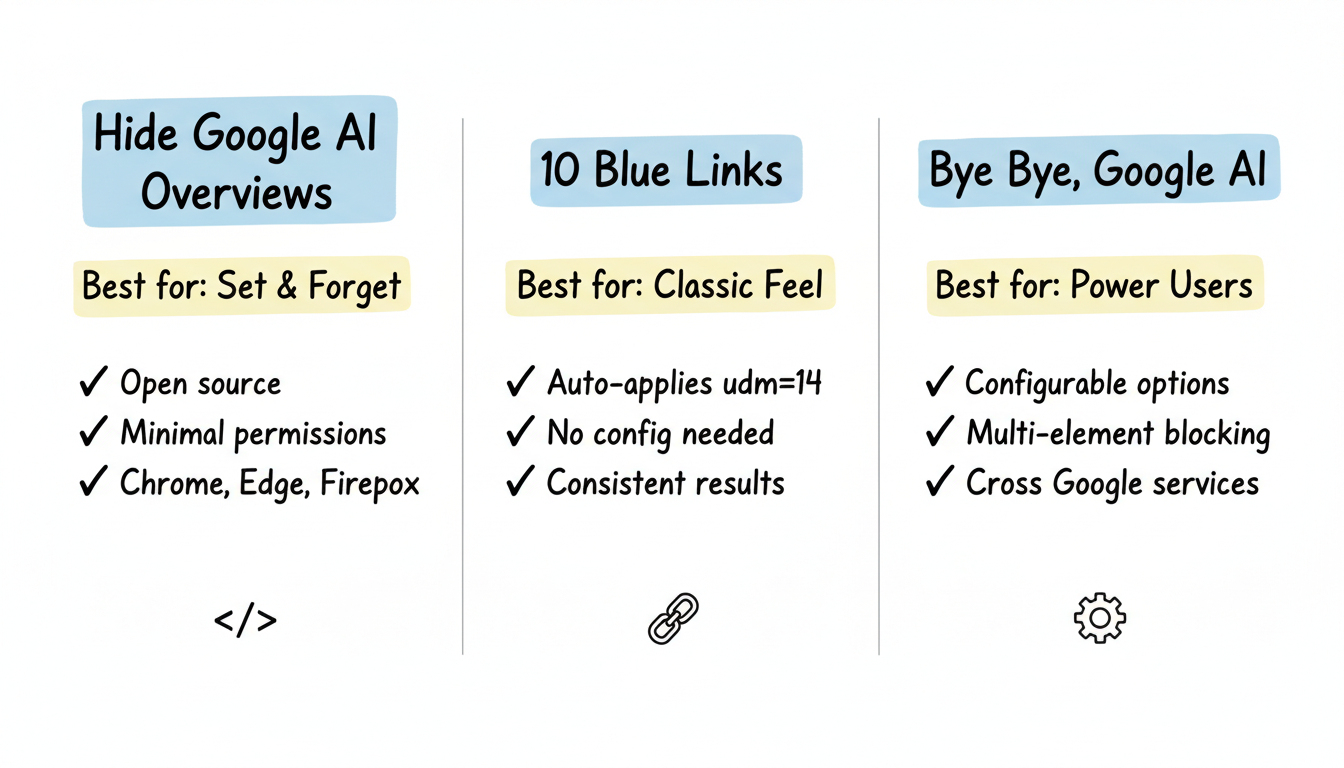
Several browser extensions have emerged to fill the gap Google left. Here are the top options for 2026.
Best for: Set-and-forget simplicity
Feature | Details |
Developer | Zbarnz |
Open source | Yes (code available) |
Browsers | Chrome, Edge, Firefox |
Method | CSS/JavaScript injection |
Strengths:
Considerations:
Best for: Return to classic Google experience
This extension forces Google to display traditional search results, mimicking the pre-AI search experience. It uses the udm=14 parameter automatically.
Strengths:
Considerations:
Best for: Customizable blocking
Allows users to hide AI Overviews along with other unwanted Google Search elements. Offers more granular control over what appears in results.
Strengths:
Considerations:
For users who prefer not to install extensions, Google's undocumented udm=14 URL parameter provides a native workaround.
Adding &udm=14 to any Google search URL forces Web-only results without AI Overviews. This approach is particularly useful for those exploring google-ai-overviews-optimization strategies and want to compare traditional versus AI-enhanced results.
Example:
https://www.google.com/search?q=your+search+term&udm=14Chrome custom search engine:
Firefox search engine:
Edge configuration: Follow similar steps as Chrome through Settings → Privacy, search, and services → Address bar and search.
For users already running uBlock Origin ad blocker, a custom filter can hide AI Overviews without additional extensions.
Adding the filter:
This method treats AI Overviews similarly to advertisements—hiding them based on CSS selectors. The approach requires occasional updates when Google changes its markup.
Manual search operators can also reduce AI Overview appearances:
Operator | Effect |
-ai in query | May reduce AI content in some results |
before:2023 | Returns older results without AI influence |
site: operator | Limits to specific domains |
These methods are less reliable than extensions but require no installation.
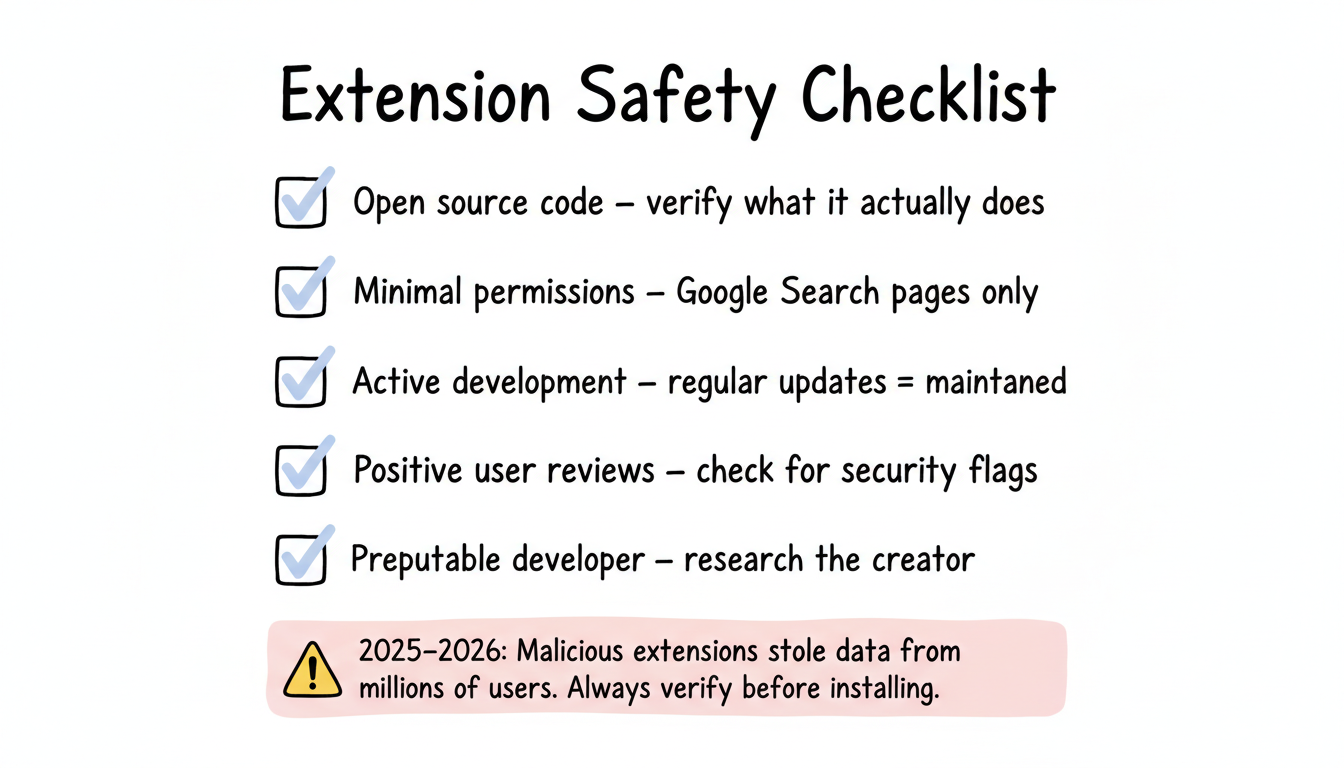
Browser extensions require permissions to function—and some have exploited this trust.
Check | Why It Matters |
Open source code | Verify what the extension actually does |
Minimal permissions | Only Google Search pages should be accessed |
Active development | Regular updates indicate maintenance |
User reviews | Check for security concerns |
Developer reputation | Research the creator |
Recent concerns: In 2025-2026, multiple malicious browser extensions affected millions of users by stealing data, including AI chatbot conversations. Always verify extension legitimacy before installation.
All blocking methods come with trade-offs.
Understanding these limitations is crucial when comparing different ai-search-platform-strengths-weaknesses-analysis across the landscape.
Google periodically updates its HTML structure, which breaks CSS-based blocking methods. When this happens:
Some search engines don't use AI Overviews. For businesses evaluating platforms for their generative-ai-seo strategy, these alternatives offer different visibility opportunities:
Some users configure browsers to use alternative default search engines, bypassing Google entirely for everyday searches while keeping it available for specific needs. This approach can be particularly valuable when conducting chatgpt-vs-perplexity-comparison research across multiple platforms.
No official method exists to permanently disable AI Overviews in Google Search. Extensions and URL parameters provide workarounds, but Google can change its systems at any time.
Extensions from reputable developers with open-source code and minimal permissions are generally safe. Always verify before installing, and remove extensions you don't actively use.
Google considers AI Overviews a core search feature integral to their product direction. The company has invested heavily in AI integration and likely views it as essential to competing with AI-native search tools.
Browser extensions work on mobile browsers that support them (like Firefox on Android). The udm=14 parameter works in any mobile browser. Native Google app and iOS Safari have fewer options.
By submitting this form, you agree to our Privacy Policy and Terms & Conditions.